
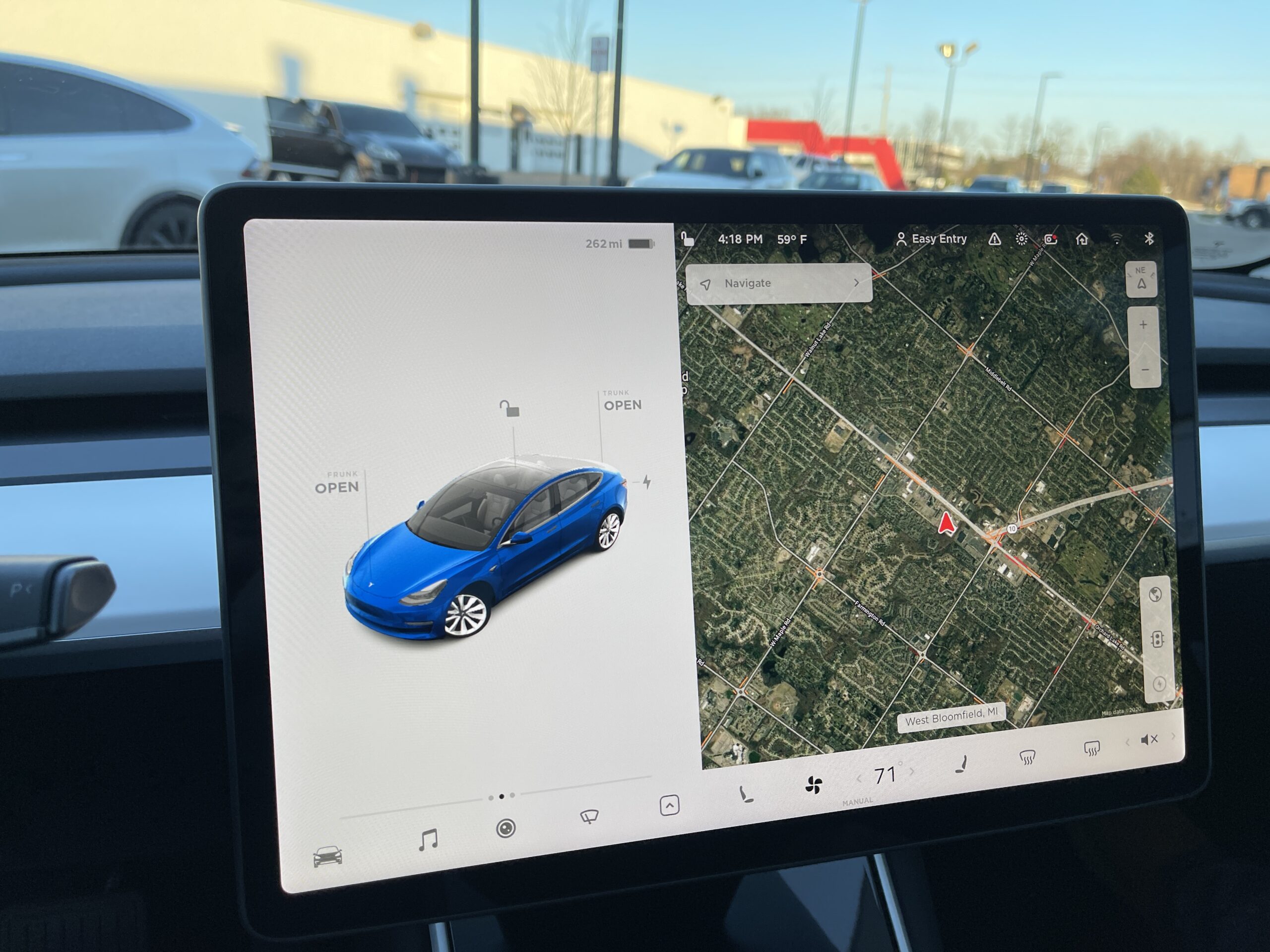
Your Tesla is watching, even when you’re not. Sentry Mode turns the car’s exterior cameras into a 360-degree security system while it’s parked, and Dashcam quietly records the road while you drive — capturing the door-ding in the grocery lot, the hit-and-run at the red light, or the break-in attempt at 2 a.m. But here’s what a lot of new owners discover the hard way: none of it is saved unless you have the right USB drive plugged into the right port, formatted the right way. Buy the wrong drive and Sentry will tell you it’s recording, then have nothing when you actually need the footage.
This guide walks through exactly how Dashcam and Sentry Mode work in 2026, the official Tesla USB requirements, which drives are genuinely worth buying (and which fail after a few months), how to format and set everything up in about five minutes, and how much battery Sentry really drains overnight. It applies to Model 3, Model Y, Model S, Model X and Cybertruck across the United States and Canada.
Disclosure: some links are affiliate/referral links. If you buy through them we may earn a small commission at no extra cost to you. See our disclosure page.
📋 Contents
- What Sentry Mode and Dashcam Actually Do
- The Official USB Drive Requirements (2026)
- Best Tesla Dashcam Drives to Buy in 2026
- How to Format and Set Up Your Drive (5 Minutes)
- Sentry Mode Battery Drain: How Much It Really Costs
- Getting 24 Hours of Footage and Other Pro Tips
- Frequently Asked Questions
- The Bottom Line
What Sentry Mode and Dashcam Actually Do
These are two separate features that share the same cameras and the same storage drive:
- Dashcam runs while you’re driving. It continuously records a rolling loop from the front, rear and side (repeater) cameras. Tap the Dashcam icon on the screen — or the car auto-saves a clip when it detects an event — and the last several minutes are written to a permanent SavedClips folder so the loop doesn’t overwrite them.
- Sentry Mode runs while the car is parked and locked. Per Tesla’s official documentation, the car stays “awake,” monitors its surroundings, and if it detects a threat (someone leaning on the car, a nearby impact, a broken window) it flashes a warning on the touchscreen, can sound the alarm, and saves the footage to a SentryClips folder. You also get a notification in the Tesla app.
Both features write video to a USB drive you supply. Tesla does not ship a drive in the box (the small “Tesla” branded USB that used to come with early cars is long gone), and internal storage is not used for Dashcam or Sentry footage. No drive, no recording — full stop.
What’s new for 2026: the biggest change is the expanded footage buffer that rolled out with software update 2026.14. As documented by Not a Tesla App, on a large enough drive Tesla now retains up to 24 hours of rolling Sentry/Dashcam footage instead of the old ~1 hour, so an overnight incident isn’t overwritten before you wake up. Tesla has also steadily cut Sentry’s power draw (more on that below) and improved the in-app viewer so you can review recent clips remotely without pulling the drive.
The Official USB Drive Requirements (2026)
Straight from the Tesla Owner’s Manual, here is what a drive must meet. Get any one of these wrong and recording will fail silently.
| Requirement | Tesla’s spec | What it means for you |
|---|---|---|
| Minimum capacity | 64 GB | Bare minimum. 256 GB–1 TB is far better; 1 TB+ unlocks 24-hour retention. |
| Sustained write speed | At least 4 MB/s | This is sustained, not peak. Cheap flash drives fail here first. |
| USB standard | USB 2.0 compatible (USB 3.0 fine if it also supports 2.0) | Almost all modern drives qualify. |
| File system | exFAT (Windows/Mac), or FAT/ext3/ext4 | NTFS is not supported. exFAT is the safe default. |
| Port | USB-A port in the glovebox only | The USB-C ports in the console and rear do not record footage. |
That last row trips up a lot of Model 3 and Model Y owners: only the USB-A port inside the glovebox supports Dashcam/Sentry. The USB-C ports in the center console are for charging phones and playing music, not recording. If your car only has USB-C in the glovebox (some very recent builds), you’ll need a quality USB-C SSD or a short USB-C-to-A situation — check your specific car.
Best Tesla Dashcam Drives to Buy in 2026
The single most important quality for a Tesla drive is sustained write endurance, not headline speed. Dashcam writes video 24/7, which is a brutal, constant workload that kills ordinary flash drives within months (you’ll see the dreaded “USB drive is too slow” error). Two approaches work well: a small portable SSD, or a high-endurance microSD card (designed for security cameras) in a USB reader.
| Option | Why it works | Rough price (USD) | Best for |
|---|---|---|---|
| Portable SSD (e.g. Samsung T7 / SanDisk Extreme, 500 GB–1 TB) | Massive endurance, fast, runs cool, easily hits 24-hour buffer at 1 TB | $60–$110 | Owners who want the best and to enable 24-hour retention |
| High-endurance microSD (256 GB–512 GB) + USB-A reader | Purpose-built for continuous dashcam writes; cheap to replace | $30–$55 | Best value; tuck the reader in the glovebox and forget it |
| Purpose-built “Tesla” USB stick (256 GB) | Plug-and-play, often pre-formatted with TeslaCam folder | $25–$45 | Owners who want zero setup |
| Generic cheap flash drive | Avoid — fails the sustained-write test, overheats, corrupts | $10–$15 | Nobody. This is the #1 cause of “no footage” complaints |
You can compare current models and prices on Amazon — Tesla dashcam drives on Amazon US or on Amazon Canada. For the SSD route specifically, the Samsung T7 1 TB is a popular, proven pick; for the microSD route, look for a card explicitly rated “High Endurance” or “Max Endurance” (SanDisk, Samsung PRO Endurance).
Sizing tip: at roughly 1 GB per camera per hour, a 256 GB drive gives you many hours of loop before overwrite, while a 1 TB drive is what you want to actually unlock the new 24-hour Sentry buffer on 2026.14 software. If you park in a busy public spot overnight, spring for 1 TB.
How to Format and Set Up Your Drive (5 Minutes)
You can either format on a computer first (recommended, faster) or let the car do it. Here’s the computer method, which gives you the cleanest result:
- Windows: plug in the drive, right-click it in File Explorer → Format → File system: exFAT, allocation unit 32 KB, Quick Format → Start. Then create a top-level folder named exactly TeslaCam (case-sensitive, one word).
- Mac: open Disk Utility → select the drive → Erase → Format: ExFAT → Erase. Then create a folder named TeslaCam at the root.
That’s it — Tesla automatically creates SavedClips, SentryClips and RecentClips subfolders inside TeslaCam on first use. Plug the drive into the glovebox USB-A port. Within a minute you should see a small camera icon appear at the top of the touchscreen with a red dot, meaning it’s recording.
Prefer to skip the computer? On software 2024.x and later you can format directly in the car: tap Controls → Safety → Format USB Drive (or the camera icon settings). The car formats it as exFAT and creates the folder for you. Note this erases everything on the drive.
To turn the features on, go to Controls → Safety and enable Dashcam and Sentry Mode. You can set Sentry to stay off at trusted locations like home and work so it doesn’t drain the battery in your own driveway — a genuinely useful setting we cover more in our Tesla app features guide.
Sentry Mode Battery Drain: How Much It Really Costs
The most common complaint about Sentry Mode is “vampire drain” — battery you lose while parked. It’s real, but it’s gotten dramatically better. Because Sentry keeps the computer and cameras awake, it draws roughly 220–300 watts continuously, about the equivalent of losing one mile of range per hour.
| Scenario | Typical drain | Notes |
|---|---|---|
| Sentry on, 12 hours overnight | ~4–6% of battery | Roughly 2–3 kWh; better on newer HW4 cars |
| Sentry on, full 24 hours | ~8–12% per day | More if the cameras trigger frequently in a busy area |
| Sentry off (car asleep) | ~1% per day | Normal standby drain |
A few things worth knowing. Sentry automatically shuts off once your battery drops below 20% state of charge, so it will never strand you. Tesla’s 2024–2025 software updates cut Sentry consumption by roughly 40% versus older builds, so if you remember it being worse a couple of years ago, it is genuinely better now. And you can be strategic: use the Exclude Home / Exclude Work / Exclude Favorite location toggles so Sentry only runs where you actually need it, like airports, malls and street parking. If you leave your Tesla parked for a week at an airport, leaving Sentry on the whole time can eat a meaningful chunk of charge — plan for it.
Getting 24 Hours of Footage and Other Pro Tips
With the 2026.14 update, unlocking the long buffer is straightforward but has conditions:
- Use a drive of 1 TB or larger. Smaller drives cap out well below 24 hours — as little as one hour on a 64 GB stick.
- Keep the drive mostly empty of other files. Don’t use the same drive for a huge music library; give the footage room.
- Review clips in the app, not just the screen. The Tesla app now lets you view recent Sentry events remotely — handy when you get a notification while you’re inside a store.
- Reformat every few months. Even good drives accumulate corrupted fragments. A periodic reformat (back up any saved clips first) prevents the “drive too slow” error.
- Heat is the enemy. In desert summers a bare USB stick in the glovebox can overheat and drop out. An SSD handles heat far better — one reason we lean toward SSDs for owners in Phoenix, Vegas or Texas.
If you’re still shopping for the car itself, Sentry and Dashcam are standard on every current Tesla — there’s no add-on to buy. New owners who order through a referral link currently get 3 months of free Full Self-Driving (Supervised) thrown in, which pairs nicely with the built-in security tech. For the full picture on picking a model, see our Model 3 buying guide, and for keeping the car healthy long-term, our battery degradation guide covers how features like Sentry affect your pack over time.
Frequently Asked Questions
Does Sentry Mode record without a USB drive?
No. Sentry Mode and Dashcam both require a compatible USB drive plugged into the glovebox USB-A port. Without one, the car can still flash a warning and alert you in the app when Sentry detects a threat, but no video is saved. Internal storage is not used for footage.
What format does the Tesla USB drive need to be?
exFAT is the recommended and safest choice. Tesla also accepts FAT (MS-DOS), ext3 and ext4, but not NTFS. After formatting, create a top-level folder named exactly TeslaCam, or let the car format the drive for you.
How big should my Tesla dashcam drive be?
64 GB is the minimum, but 256 GB is a sensible sweet spot for most owners, and 1 TB or larger is required to unlock the new 24-hour rolling buffer on 2026.14 software. Bigger drives also mean footage is overwritten less often.
How much battery does Sentry Mode use overnight?
Expect roughly 4–6% of battery over a 12-hour night, or about one mile of range per hour. Recent software has cut this by around 40% compared to older versions. Sentry automatically disables below 20% charge so it can’t fully drain your car.
Why does my Tesla say the USB drive is too slow?
The drive can’t sustain the required 4 MB/s write speed — usually a cheap flash drive that overheats or has worn out. Switch to a portable SSD or a high-endurance microSD card, and reformat as exFAT. This is the single most common cause of missing footage.
Can I use one drive for both Dashcam music and Sentry footage?
You can store music on the same drive, but it’s not ideal — a large music library eats space the footage needs and can prevent the 24-hour buffer. For best results, dedicate a drive to TeslaCam and keep music on a separate USB-C stick.
Does Sentry Mode work in cold Canadian winters?
Yes, Sentry works year-round, but extreme cold increases overall vampire drain because the car may condition the battery. In a Canadian winter, expect somewhat higher overnight loss and consider excluding trusted locations. See our maintenance guide for cold-weather tips.
The Bottom Line
- You must supply a drive. Dashcam and Sentry record nothing without a compatible USB drive in the glovebox USB-A port — no drive is included with the car.
- Match Tesla’s specs: 64 GB minimum (256 GB–1 TB recommended), 4 MB/s sustained write, exFAT format, and a top-level TeslaCam folder.
- Buy for endurance, not price. A portable SSD or high-endurance microSD lasts; a cheap flash drive fails within months and is the top cause of “no footage.”
- Go 1 TB for 24-hour retention on 2026.14 software so overnight incidents aren’t overwritten.
- Sentry drains ~4–6% overnight — real but manageable. Use location exclusions, and it auto-disables below 20%.
Set it up once, plug it in, and your Tesla quietly protects itself every time you park. For more setup and money-saving guides, browse our Tesla accessories section.
Information current as of July 2026 and based on Tesla’s published Owner’s Manual and 2026.14 software behavior; features and battery-drain figures vary by model, hardware version and software update, and may change. This article is for general information, not professional advice — verify current specs against your own vehicle. Some links are affiliate/referral links; see our disclosure page. Image credit: “Tesla Model 3 Screen Dec 2020” by SirAsdof, licensed under CC BY-SA 4.0, via Wikimedia Commons.

About the author: Lifei
Lifei is a Tesla owner based in Canada, writing practical, fact-checked Tesla guides for US and Canadian drivers — buying, ownership, insurance, charging, and TSLA investing, all from first-hand experience.

Leave A Comment