
Tesla Sentry Mode & Dashcam Guide 2026: Best USB Drives, Setup & Battery Drain
Tesla Sentry Mode & Dashcam Guide 2026: Best USB Drives, Setup & Battery Drain

In one sentence
Everything Tesla owners need for Dashcam and Sentry Mode in 2026: the best USB drives and SSDs, how to format and set up storage, real battery-drain numbers, and how to view footage.
Your Tesla is one of the most camera-covered vehicles on the road, and two features put those cameras to work when you are not behind the wheel: Dashcam, which records the road while you drive, and Sentry Mode, which keeps watch when the car is parked. Used together, they have helped owners catch hit-and-run drivers, document parking-lot dents, and hand police usable footage. But there is a catch most new owners learn the hard way — neither feature works reliably unless you plug in the right kind of storage and dial in a few settings. This 2026 guide walks through exactly what drive to buy, how to format it, how much battery Sentry Mode really uses, and how to get the footage off your car.
Disclosure: some links are affiliate/referral links and we may earn a commission at no extra cost to you. See our disclosure page.
📋 Contents
- Dashcam vs. Sentry Mode: What Each One Actually Does
- USB Drive Requirements in 2026: What Tesla Officially Needs
- Best Drives for a Tesla Dashcam in 2026
- How to Format and Set Up Your Drive (Step by Step)
- Battery Drain: How Much Does Sentry Mode Really Cost?
- Smart Settings to Cut the Drain
- Viewing, Saving, and Sharing Your Footage
- Is It Worth It? Our Take for 2026
- Frequently Asked Questions
- The Bottom Line
Dashcam vs. Sentry Mode: What Each One Actually Does
People use the words interchangeably, but they are two different features that happen to share the same cameras and the same USB drive.
Dashcam records continuously while you are driving. By default it keeps a rolling buffer, and you save a clip by tapping the camera icon on the screen (or honking, if you turn that on). It is your evidence for collisions, road-rage incidents, and the classic “they pulled out in front of me” dispute.
Sentry Mode activates when the car is parked and locked. Using the same exterior cameras, it watches for people leaning on the car, breaking in, or hitting it. When something triggers it, the car flashes its lights, can play an alarm, displays a warning on the screen, sends an alert to your phone, and saves the footage to the USB drive. Think of Dashcam as the feature for when you are in the car and Sentry Mode as the one for when you have walked away from it.
Both features write video to the same drive in a folder called TeslaCam, which is exactly why getting your storage right is step one for everything else in this guide. If you are still kitting out a new car, this pairs well with our roundup of Tesla accessories for new owners.
USB Drive Requirements in 2026: What Tesla Officially Needs
Tesla publishes minimum specs, and ignoring them is the number-one reason owners see “USB drive not found” or footage that stutters and drops frames. Here is what the 2026 owner’s manuals call for:
- Capacity: at least 64 GB. In practice, go bigger — Sentry Mode can fill 64 GB in a busy parking lot.
- Sustained write speed: at least 4 MB/s. Cheap thumb drives often can’t keep this up while recording four camera feeds at once.
- Interface: USB 2.0 compatible (USB 3.0/3.1 drives are fine since they fall back to 2.0).
- Format: exFAT (or FAT32/ext4), with a
TeslaCamfolder at the root. The car can also format the drive for you, which we cover below.
The bigger point hidden in those numbers: endurance matters more than the headline specs. Dashcam and Sentry Mode write video around the clock, which is a punishing, write-heavy workload that wears out ordinary flash drives in a matter of months. That is why most experienced owners skip USB thumb drives entirely and use a small portable SSD or a high-endurance card. You can read Tesla’s exact wording in its USB drive requirements documentation.
Best Drives for a Tesla Dashcam in 2026
You have three realistic options, and they trade off price, speed, and lifespan. Here is how they compare for North American owners:
| Option | Typical price (USD) | Best for | Lifespan under Sentry use |
|---|---|---|---|
| Portable SSD (e.g. Samsung T7 / T7 Shield, 500 GB–1 TB) | $60–$110 | Most owners; heavy Sentry use; rock-solid reliability | Years |
| High-endurance microSD + USB adapter (256 GB) | $35–$55 | Budget setups; built to be written to constantly | 20,000+ rated recording hours |
| Standard USB flash drive (64–128 GB) | $10–$20 | Light/occasional use only | Often fails in 3–6 months |
Our recommendation for 2026 is a 500 GB or larger portable SSD. It is fast enough to never drop frames, large enough to hold weeks of footage, and tough enough to survive being written to constantly. A rugged, shock-resistant model is worth the small premium because it lives in a hot car. The one in my own glovebox is the Samsung T7 Shield 1TB (Canadian owners: same drive on Amazon CA).
If you would rather spend less, a high-endurance drive like the SanDisk Ultra Fit 256GB is the next best thing — a tiny plug that disappears into the glovebox port and is rated for far more write cycles than a generic stick. Avoid the generic flash drive that came free in a swag bag; it will work for a few weeks and then quietly stop recording right when you need it.
How to Format and Set Up Your Drive (Step by Step)
You have two ways to prepare a drive. The easy one uses the car itself.
Method 1 — Let the car do it (recommended):
- Plug the drive into the USB port inside the glovebox (on Model 3 and Model Y, this is the port dedicated to recording — the center-console ports are for charging and phones).
- On the touchscreen, open Controls > Safety > Dashcam (older software: tap the dashcam icon).
- Tap Format USB Drive. The car erases the drive, formats it correctly, and creates the
TeslaCamfolder automatically. - The camera icon should now show a red dot, meaning Dashcam is recording.
Method 2 — Format on a computer: format the drive as exFAT, then create an empty folder named exactly TeslaCam (one word, that capitalization) at the root. Eject it safely and plug it into the glovebox port.
A few setup tips that save headaches: use the glovebox port (not a hub or extension cable that drops voltage), and if the car complains the drive is too slow, it almost always means the drive itself can’t sustain the write speed — swap it for an SSD rather than reformatting endlessly.
Battery Drain: How Much Does Sentry Mode Really Cost?
Sentry Mode keeps the car’s computer and cameras awake, so it does draw power. The real-world numbers in 2026 look like this:
| Metric | Typical figure | What it means |
|---|---|---|
| Power draw | ~250–350 W | Roughly 1% of battery per hour on a Long Range car |
| Range lost per hour | ~1 mile (1.6 km) | Negligible for a quick errand |
| Over a full day | Up to ~7 kWh / ~20–24 miles | Can be 7–14% of battery if left on 24h |
For an hour at the grocery store, the drain is trivial. The problem is leaving Sentry Mode running for days in an airport parking garage or overnight in your own driveway, where it can quietly eat a meaningful chunk of charge. The good news is you control exactly where it runs. Cold weather makes this worse — for the full picture, see our Tesla winter driving and range guide.
Smart Settings to Cut the Drain
You do not have to choose between security and battery. A few settings get you most of the protection for a fraction of the cost:
- Exclude Home and Exclude Work: in Controls > Safety > Sentry Mode, toggle these on so the car does not run Sentry overnight in places you already trust. This single setting solves most “why did my car lose 15% overnight?” complaints.
- Exclude Favorite Locations: add the gym, a relative’s house, or anywhere you park regularly and feel safe.
- Set a battery floor: Sentry Mode automatically shuts off when the battery drops to around 20%, but if you are parking for several days, start with more charge than you think you need.
- Use it selectively: you can switch Sentry Mode on from the Tesla app before you leave the car in a sketchy lot, rather than running it everywhere.
These habits matter even more if you are camping or sleeping in the car, where every kWh counts — our Tesla Camp Mode guide covers overnight power use in detail.
Viewing, Saving, and Sharing Your Footage
Footage lives on the USB drive in the TeslaCam folder, split into RecentClips (the rolling buffer), SavedClips (events you saved), and SentryClips (parked-mode events). You can review the most recent saved clips right on the car’s touchscreen through the Dashcam viewer. For anything older — or to download and share a clip — pull the drive, plug it into a computer, and open the dated folders. Each event saves footage from the front, rear, and side cameras as separate files time-stamped to the same moment. One 2026 addition worth knowing: the 2026.20 software update (in wide release since early summer) added the option to encrypt dashcam and Sentry recordings on the drive, so a thief who grabs the USB drive can’t simply browse your footage — you unlock it through the car or app. If you park in public a lot, turn it on.
If you want to watch your car while you are away from it, Tesla’s Live Camera View streams the cameras to the Tesla app in real time. It requires an active Premium Connectivity subscription ($9.99/month or $99/year in the US; CA$13.99/month in Canada) and is capped at roughly one hour of cumulative use per day (about 15 minutes in some regions). Combined with Sentry Mode alerts — which push a notification to your phone the moment an incident is detected — you can check in on the car from anywhere and decide whether to head back. You can see the full feature list on Tesla’s vehicle safety and security support page, and independent coverage of the real-world battery numbers is well documented by Not a Tesla App.
Is It Worth It? Our Take for 2026
For the price of one good portable SSD, Dashcam and Sentry Mode turn your Tesla into a 360-degree witness that never blinks. The footage has settled insurance disputes, caught vandals, and in plenty of cases simply provided peace of mind in a crowded parking lot. The only real “cost” is a little overnight battery drain, and the Exclude Home/Work settings neutralize even that. If you are buying or have recently bought a Tesla, set this up on day one — and if you are still shopping, ordering through a Tesla referral link currently gets you 3 months of free Full Self-Driving (Supervised) on a new car, which is a nice bonus on top of the safety tech you already get for free. Buying used? A working Dashcam/Sentry setup is one more thing to confirm — see our used Tesla buying guide.
Frequently Asked Questions
Do I need a USB drive for Sentry Mode to work?
Sentry Mode will still flash lights, sound an alarm, and alert your phone without a drive, but it can only record and save footage if a compatible USB drive is plugged into the glovebox port. No drive means no video evidence, so a drive is essential to get the full benefit.
What size and type of drive should I buy?
At minimum, Tesla requires 64 GB with a sustained write speed of 4 MB/s. In practice, a 500 GB or larger portable SSD is the best choice because it is fast, durable, and won’t wear out from constant recording. Avoid generic flash drives, which often fail within a few months.
How much battery does Sentry Mode use overnight?
Roughly 1% per hour, or up to 7–14% over a full day if left running continuously. Turning on Exclude Home and Exclude Work stops it from draining your battery in places you already trust, which eliminates the vast majority of overnight loss.
Can I watch my Tesla’s cameras live from my phone?
Yes, via Live Camera View in the Tesla app, but it requires an active Premium Connectivity subscription and is limited to about one hour of use per day (around 15 minutes in some regions).
Why does my car say the USB drive is too slow or not found?
Almost always because the drive can’t sustain the required write speed, or it isn’t formatted correctly. Reformat it using the car’s built-in “Format USB Drive” option; if the warning persists, the drive itself is the problem and you should switch to a portable SSD.
Does Sentry Mode record sound?
No. Dashcam and Sentry Mode record video only, not audio. This keeps the feature compliant with two-party recording laws in many states and provinces.
The Bottom Line
- Buy the right drive: a 500 GB+ portable SSD is the sweet spot; minimum spec is 64 GB at 4 MB/s sustained write.
- Set it up in minutes: plug into the glovebox port and use the car’s “Format USB Drive” button to create the TeslaCam folder automatically.
- Manage the drain: enable Exclude Home, Work, and Favorites so Sentry only runs where you need it.
- Use the app: Sentry alerts plus Live Camera View (with Premium Connectivity) let you check in on your car from anywhere.
- It’s worth it: for the cost of one SSD, you get continuous video evidence and real peace of mind.
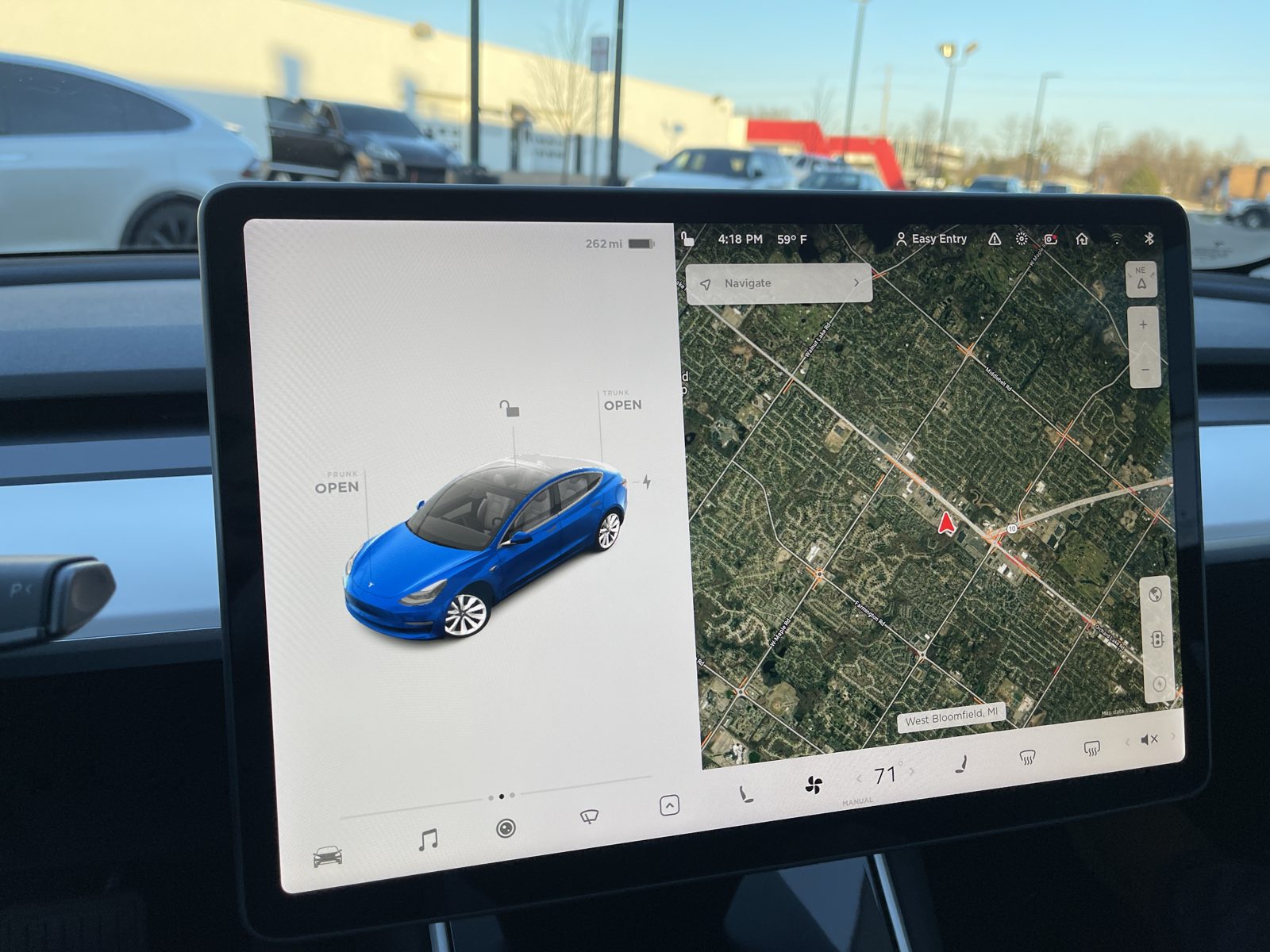
Information is current as of July 2026 and based on Tesla’s published owner documentation and North American owner reports; features, requirements, and Premium Connectivity availability can change with software updates and by region — confirm details with Tesla before purchasing. This article is for general information only and is not professional or legal advice. Some links are affiliate/referral links; see our disclosure page. Image credit: “Tesla Model 3 Screen Dec 2020” by SirAsdof, licensed under CC BY-SA 4.0, via Wikimedia Commons.

About the author: Lifei Zhou
Model Y owner since 2022Ontario STO registered apprentice · 310SWorks on Porsche, Mercedes, BMW, Audi weeklyHundreds of readers referred (est.)
Lifei is a Tesla owner based in Canada, writing practical, fact-checked Tesla guides for US and Canadian drivers — buying, ownership, insurance, charging, and TSLA investing, all from first-hand experience.