
For most Tesla owners in the US and Canada, the little app on your phone is the car. There’s no physical key to fish out of your pocket, no fob to fumble with in the cold — you walk up, the doors unlock, and you drive off. But the Tesla app in 2026 does a lot more than open the doors. It pre-heats the cabin before you leave the house, shows you a live camera feed of your parked car, tracks a road-trip charge, and even lets you summon the car across a parking lot. Most people use maybe a quarter of what it can do.
This guide walks through everything the Tesla app handles in 2026 — how to set up phone key the right way, the remote controls worth using every day, the security features behind Premium Connectivity, and the small settings that quietly make ownership better. It applies to Model 3, Model Y, Cybertruck, and the current Model S and X across the United States and Canada.
Disclosure: some links are affiliate/referral links, meaning we may earn a commission at no extra cost to you if you order through them. See our disclosure page.
📋 Contents
- What the Tesla App Actually Does in 2026
- Setting Up Phone Key (Your Phone Becomes the Key)
- Key Cards, Fobs & Backup Keys: What to Carry
- Remote Controls You’ll Use Every Day
- Live Camera, Sentry Mode & Security
- Pet Mode, Camp Mode & Keep Climate On
- Actually Smart Summon & Finding Your Car
- Supercharging & Trip Planning From the App
- Premium vs Standard Connectivity: What You Get
- Troubleshooting: When Phone Key Won’t Connect
- Frequently Asked Questions
- The Bottom Line
What the Tesla App Actually Does in 2026
The Tesla app connects to your car over the internet (using the car’s built-in cellular connection) and over Bluetooth when you’re standing next to it. That split matters: some features work from anywhere in the world, while others only work when your phone is within a few feet of the car.
Here’s the short version of what the app controls:
- Phone key — unlock, lock and drive the car with your phone via Bluetooth, no card or fob needed.
- Climate — turn on heating or A/C, defrost, and check the cabin temperature before you get in.
- Charging — start/stop charging, set a charge limit, open the charge port and see how many miles you’ve added.
- Security — lock/unlock remotely, enable Sentry Mode, and view live cameras (with Premium Connectivity).
- Location & Summon — find where you parked and pull the car out of a tight spot with Actually Smart Summon (FSD required).
- Software & service — schedule updates, book service, and buy upgrades like FSD or acceleration boost.
If you’re a brand-new owner, download the app before you take delivery and log in with the email on your Tesla account. Your car appears automatically once it’s assigned to you.
Setting Up Phone Key (Your Phone Becomes the Key)
Phone key is the feature that defines the modern Tesla experience, and it’s the first thing to set up. Every current Tesla supports it — the only exceptions are older legacy cars (roughly 2012–2020 Model S and 2015–2020 Model X), which rely on a fob instead.
To set it up, stand next to your car with the app open and follow these steps:
- Make sure Bluetooth is on in your phone’s system settings — and specifically enabled for the Tesla app. On an iPhone, go to Settings > Tesla and confirm Bluetooth is allowed.
- Set Location access to “Always” for the Tesla app. Without this, phone key becomes unreliable and passive entry may not work.
- In the app, select your vehicle, tap Set Up next to “Phone Key,” and choose whether the phone unlocks all doors or just the driver’s door.
Once it’s paired, walking up unlocks the car and getting in with your phone lets you drive. A few habits keep it dependable: keep the app running in the background (don’t force-close it), keep the phone’s OS and the app updated, and if you have battery-optimization or “low power” modes that kill background apps, whitelist Tesla. Tesla’s own vehicle keys support page is the authoritative reference if pairing fails.
Buying a new Tesla and want the best deal on the way in? Ordering through a Tesla referral link currently gets you 3 months of free Full Self-Driving (Supervised) — a nice perk to claim before delivery, and one that pairs naturally with learning the app.
Key Cards, Fobs & Backup Keys: What to Carry
Even with phone key working perfectly, you should always keep a backup. Tesla ships two key cards with the car; they tap on the center console (or the driver’s door pillar on some models) to unlock and drive. A phone battery that dies at the trailhead is exactly when you’ll want that card in your wallet.
| Key type | How it works | Best for |
|---|---|---|
| Phone key | Bluetooth via the Tesla app; passive unlock/drive | Everyday driving — your primary key |
| Key card | Tap NFC card on the console/pillar reader | Backup, valet, lending the car, dead phone |
| Key fob (optional) | Physical remote sold separately by Tesla | Owners who prefer a traditional key |
To add or remove a key, tap Controls > Locks > Keys on the car’s touchscreen, then scan the new card or fob and confirm with an existing key. This is also how you’d revoke a key if you sell the car or lose a card. A slim key card holder (or the Canadian version) keeps that backup card in your wallet where it belongs.
Remote Controls You’ll Use Every Day
This is where the app earns its keep. From anywhere with a signal, you can prep the car before you ever touch a door handle:
- Climate — the single most-loved feature. Turn on the heat on a freezing Toronto morning or blast A/C in Phoenix so the cabin is comfortable the moment you sit down. You can also trigger Defrost to melt ice off the glass.
- Lock / Unlock — did you leave it unlocked in the driveway? One tap fixes it from bed.
- Charging — set your daily charge limit (80% is the usual advice for battery health), start or stop a session, and open the charge port door for a friend who’s plugging in.
- Remote Start — tap Controls > Start to enable driving for two minutes without a key, handy when someone needs to move the car.
- Honk & Flash — find your car in a crowded lot by flashing the lights or sounding the horn.
- Trunk & Frunk — pop the rear trunk (and the front trunk on supported models) with your hands full of groceries.
A recent 2026 addition worth knowing: a Mobile Access toggle lets you disable remote control of the car from the app entirely — useful if your phone is ever lost or your credentials are compromised. There’s also a new lock-alert animation that warns when a door is locked while a phone key is still inside the cabin.
Live Camera, Sentry Mode & Security
Tesla’s security features are among the strongest reasons to keep Premium Connectivity (more on cost below). With it, the app unlocks:
- Sentry Mode — the car’s cameras watch for activity while parked and record clips if someone gets too close. Enable it from the app’s Security section or the car screen. Our full Sentry Mode & dashcam guide covers USB drive setup and battery drain in detail.
- Live Camera — view a real-time feed from the car’s exterior cameras right in the app, so you can check the surroundings before walking back to a car parked in a sketchy garage. Tesla states the feed is end-to-end encrypted and it can’t access it; it requires app version 4.2.1 or later and Premium Connectivity.
These features draw a small amount of battery while parked, but for most owners the peace of mind is worth it. For deeper background on how Tesla frames these tools, see Tesla’s vehicle safety & security features page.
Pet Mode, Camp Mode & Keep Climate On
Three climate features get confused constantly, so here’s the plain-English difference — all three are controllable or checkable from the app:
| Feature | What it’s for | Screen behavior |
|---|---|---|
| Pet Mode (formerly Dog Mode) | Keeps pets comfortable while you run into a store | Shows a “My owner will be back soon” message and current temp |
| Camp Mode | Sleeping/hanging out in the car with power to outlets | Keeps climate, USB power and music on overnight |
| Keep Climate On | Maintaining cabin temp when you step out briefly | Holds the set temperature; simplest of the three |
In the 2026 Spring update, Tesla rebranded Dog Mode to Pet Mode, added animated dog/cat/hedgehog characters, and let you display your pet’s name. Safety guardrails apply: the car won’t start Pet Mode below 20% battery, and if the battery drops to that level while you’re away, you get an immediate push notification. Planning to sleep in the car on a trip? Our Camp Mode guide covers battery use and gear.
Actually Smart Summon & Finding Your Car
If your Tesla has Full Self-Driving capability, the app can call the car to you across a parking lot with Actually Smart Summon. You hold a button in the app and the car navigates to your location (or a pin you drop) at low speed, up to roughly 65 meters (about 210 feet) away. It’s genuinely useful in the rain or when you’re loading a cart. Read our Full Self-Driving guide for what FSD does and doesn’t include in 2026.
Even without FSD, the app always shows your car’s parked location on a map — a small thing that saves real frustration in a giant airport garage. Tap the location card and it opens directions back to the car.
Supercharging & Trip Planning From the App
The app doubles as a charging companion. Drag up the map inside the app to see nearby Superchargers, including how many stalls are available in real time, then tap Send to Car to push the destination straight to your navigation. On a road trip, the car itself plans charging stops, but the app lets you monitor charge progress from your hotel room and get a notification when it’s ready — or when someone unplugs you.
Curious what a charge actually costs across the two countries? We break the math down in our Supercharger cost guide. For general reference on EV efficiency and range, the US Department of Energy’s fueleconomy.gov EV pages are a solid neutral source.
Premium vs Standard Connectivity: What You Get
New Teslas include a free trial of Premium Connectivity; after it ends, some app features fall back to a Wi-Fi-only or reduced state. Here’s the practical split in 2026:
| Feature | Standard | Premium (~US$9.99 / CA$12.99 per month) |
|---|---|---|
| Remote climate & lock | Yes | Yes |
| Live Camera view | No | Yes |
| Live traffic & satellite maps | Wi-Fi only | Yes, over cellular |
| Streaming music & video | Wi-Fi only | Yes, over cellular |
Pricing is approximate for 2026 and varies by market — always confirm current rates on Tesla’s Tesla app support page. For most owners who value Sentry live view and cellular streaming, the roughly ten-dollar monthly fee is an easy yes.
Troubleshooting: When Phone Key Won’t Connect
Phone key is reliable 95% of the time, and the other 5% almost always comes down to a handful of fixable causes:
- Bluetooth disabled for the app — the number-one culprit. Re-enable it in your phone’s app-level settings.
- Location not set to “Always” — passive entry needs continuous location access.
- App force-closed or battery-optimized — let it run in the background; whitelist it from aggressive power savers on Android.
- Phone software glitch — toggle Bluetooth off/on, or restart the phone. As a fallback, the app can walk you through re-pairing using your backup key card.
Whatever you do, keep that key card on you until you fully trust the setup. New to Tesla ownership? Our new-owner accessories guide and the broader US Tesla and Canada Tesla sections cover the rest of the ownership basics.
Frequently Asked Questions
Do I need Premium Connectivity to use the Tesla app?
No. Core features like remote climate, locking, charging control and location work on standard connectivity. Premium Connectivity adds live camera view, plus live traffic and streaming over cellular instead of Wi-Fi only.
Can two people share phone key on the same Tesla?
Yes. Each driver installs the app, and the owner adds them as a driver on the Tesla account. Every phone key is managed under Controls > Locks > Keys on the car screen, and any key can be removed later.
Will the car unlock if my phone battery dies?
Not via phone key — that’s exactly why you carry a key card. Tap the NFC card on the reader to unlock and drive. Some owners also buy the optional key fob as a physical backup.
Does the Tesla app drain my car’s battery?
Checking the app uses a trivial amount. Features that keep the car “awake” — Sentry Mode, Live Camera, Camp Mode and frequent remote wake-ups — use more, typically a small percentage of range per day when parked.
Which Teslas don’t support phone key?
Roughly the 2012–2020 Model S and 2015–2020 Model X, which use a key fob instead. Every Model 3, Model Y, Cybertruck and current Model S/X supports phone key.
Can I control Pet Mode or Camp Mode from the app?
Yes. You can enable or disable both from the app and monitor the cabin temperature. Pet Mode also shows the interior camera so you can check on your pet, provided the car has cellular signal.
The Bottom Line
- Set up phone key first — enable Bluetooth for the app and set Location to “Always” for reliable passive entry.
- Always carry a key card as backup; add/remove keys under Controls > Locks > Keys.
- Use remote climate daily — it’s the feature owners love most in both hot and cold climates.
- Premium Connectivity (~US$9.99 / CA$12.99 a month) unlocks Live Camera and cellular streaming; worth it for most.
- Actually Smart Summon needs FSD; the app always shows where you parked even without it.
- Buying new? Ordering through a Tesla referral link adds 3 months of free FSD (Supervised).
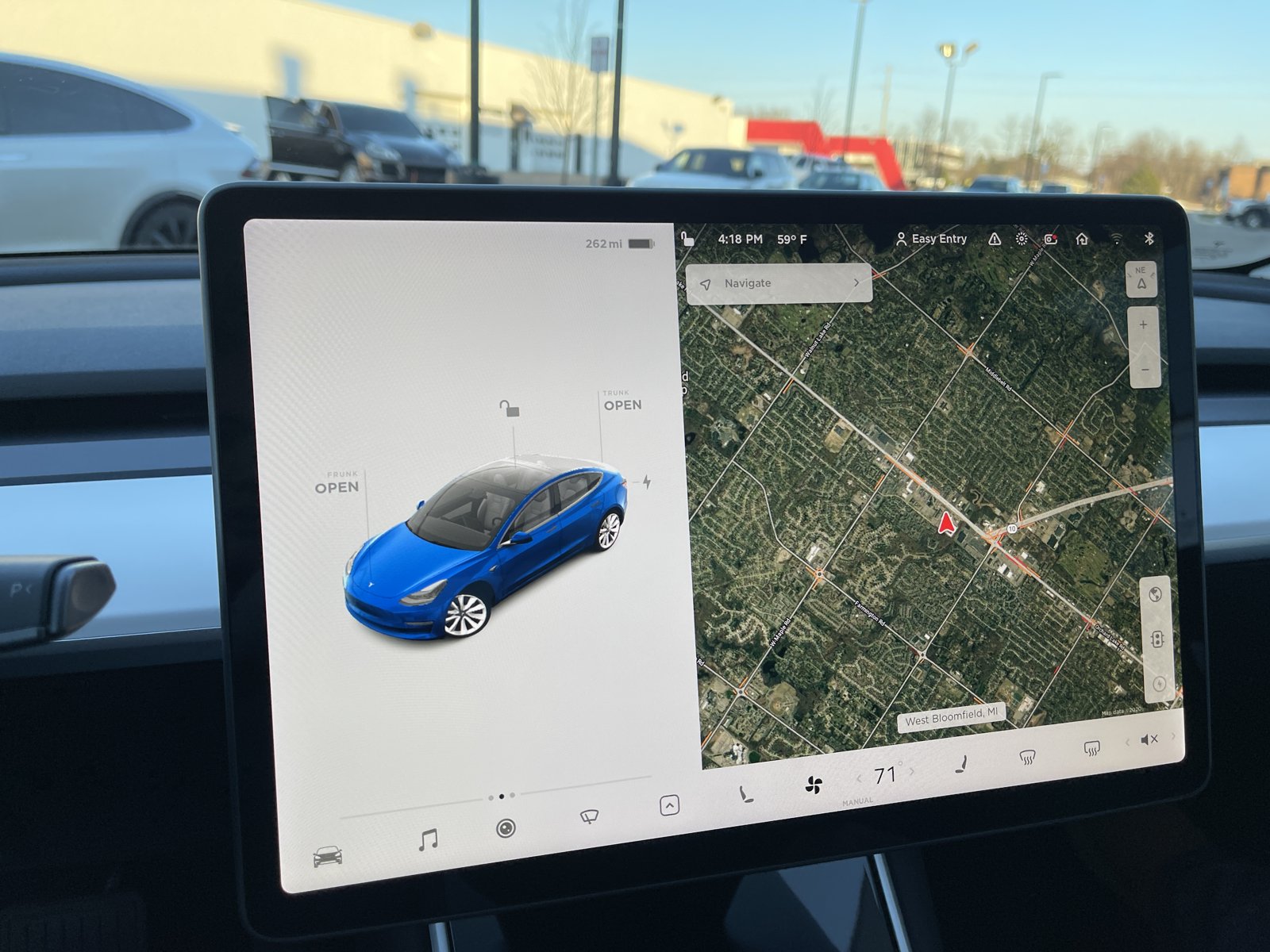
Information is current as of July 2026 and may change as Tesla ships software updates; confirm pricing and feature availability on Tesla’s official support pages before making decisions. This article is for general information only and is not affiliated with or endorsed by Tesla, Inc. Some links are affiliate/referral links — see our disclosure page. Image credit: “Tesla Model 3 Screen” by SirAsdof, licensed CC BY-SA 4.0, via Wikimedia Commons.

About the author: Lifei
Lifei is a Tesla owner based in Canada, writing practical, fact-checked Tesla guides for US and Canadian drivers — buying, ownership, insurance, charging, and TSLA investing, all from first-hand experience.

Leave A Comment