
Tesla App Guide 2026: Phone Key, Remote Control, Live Camera & Hidden Features
Tesla App Guide 2026: Phone Key, Remote Control, Live Camera & Hidden Features

In one sentence
The complete 2026 guide to the Tesla app: phone key setup, remote climate, Live Camera View, Sentry alerts, charging control, Valet Mode, and what Premium Connectivity is worth.
Your Tesla doesn’t come with a traditional key fob, a spare-tire kit, or a thick dealer manual — it comes with an app. The Tesla mobile app is the remote control, security camera, charging dashboard, and digital key for your car, and in 2026 it does far more than unlock the doors. If you’ve just taken delivery (or you’re shopping and want to know what daily ownership actually feels like), this guide walks through every feature worth using, how to set them up, and which ones need a paid subscription.
Disclosure: some links are affiliate/referral links. If you buy or order through them we may earn a commission or referral credit at no extra cost to you. See our disclosure page.
📋 Contents
- What the Tesla App Is — and What You Need to Use It
- Step One: Set Up Phone Key and Driver Profiles
- Remote Climate, Defrost, and Summon: The Daily-Use Features
- Live Camera View and Sentry Mode From Your Phone
- Charging, Scheduling, and Supercharger Management
- Security Features: PIN to Drive, Valet Mode, and Alerts
- Standard vs Premium Connectivity: What You Actually Get
- Accessories That Make the App Even Better
- Hidden Tips and Troubleshooting
- Frequently Asked Questions
- The Bottom Line
What the Tesla App Is — and What You Need to Use It
The Tesla app (free on iOS and Android) connects to your car over the internet and, at close range, over Bluetooth. To use it you need three things: a Tesla account, the car added to that account, and — for the richest features — a data connection.
Here’s the part most new owners get wrong. Basic app functions like locking, climate control, and checking your charge work over the car’s built-in Standard Connectivity, which every new Tesla includes free for eight years from delivery. But the streaming features — live camera view, satellite maps, and music streaming over cellular — require Premium Connectivity, a subscription that runs US$9.99/month or US$99/year in the United States and C$13.99/month or C$140/year in Canada. According to Tesla’s official connectivity support page, Standard Connectivity still gives you traffic-based routing, Trip Planner, and Supercharger stall availability over Wi-Fi, so you don’t strictly need to pay — but the app experience is noticeably better with Premium.
One phone can control multiple Teslas, and one Tesla can be shared with multiple drivers — useful for families. Each additional driver simply installs the app, and the owner sends an invite from Settings > Drivers.
Step One: Set Up Phone Key and Driver Profiles
The single most important thing to configure is Phone Key. This turns your smartphone into the primary key using Bluetooth. Walk up to the car and it unlocks; walk away and it locks. Open the app, follow the pairing prompt, and grant Bluetooth and (importantly) background location permission so the connection stays alive when the app is closed.
Tesla still ships two credit-card-style key cards and sells a key fob separately — keep at least one key card in your wallet as a backup, because a dead phone battery means no phone key. Pairing the card takes ten seconds by tapping it on the center console.
If more than one person drives the car, set up Driver Profiles. Each phone key can be linked to a profile that automatically restores seat position, mirrors, steering wheel, climate, and even driving preferences the moment that driver approaches. No more fiddling with the seat every time your partner borrows the car.
Remote Climate, Defrost, and Summon: The Daily-Use Features
The features you’ll actually touch every day live on the app’s home screen, which starts with four customizable quick commands: lock/unlock, climate, trunk, and charge port. You can swap those for defrost, Sentry Mode, or Summon.
Remote climate is the killer feature in both extremes of the North American climate. Pre-heat the cabin (and heated seats and steering wheel) from your kitchen on a −20 °C Prairie morning, or blast the AC before you walk across a scorching Phoenix parking lot. Defrost Mode cranks everything to clear ice fast. Because you’re using battery, not a gas engine, you can safely do this in a closed garage.
If your car has Full Self-Driving or Enhanced Autopilot, Actually Smart Summon lets you call the car to your location across a parking lot — the phone-to-car range is roughly 65 meters, and you hold down a button the whole time. US safety regulators closed their investigation into the feature in April 2026, but it still demands your full attention and a clear line of sight. For more on what FSD does and doesn’t do, see our Tesla FSD guide.
Live Camera View and Sentry Mode From Your Phone
One of the biggest 2026 additions is Live Camera View — the ability to stream your car’s exterior and interior cameras straight to your phone. Paired with Sentry Mode, Tesla’s always-on security system, you get a push alert if someone leans on the car in a parking lot, then you can open the app and watch a live, encrypted feed. Tesla states the stream is end-to-end encrypted and not accessible to Tesla itself.
This feature requires an active Premium Connectivity subscription and is available across the Model 3, Model Y, Model S, Model X, and Cybertruck. It’s the single strongest argument for paying the US$9.99/month if you frequently park in public or at Superchargers. On the newest software, Premium Connectivity subscribers also get cloud backup of dashcam clips, so key footage survives even if the car (or the USB drive) doesn’t.
Sentry Mode footage itself got safer in 2026: update 2026.20 now automatically encrypts dashcam and Sentry clips saved to your USB drive, and clips carry a telemetry overlay showing speed, steering angle, and whether FSD was engaged. For the full setup — including which USB drives actually work — read our Tesla Sentry Mode & dashcam guide.
Charging, Scheduling, and Supercharger Management
The app is your charging command center. From the Charging tab you can:
- See your live charge percentage, range, and how many miles/km per hour you’re adding.
- Set your charge limit — day to day, 80% is the widely recommended ceiling for battery longevity, with 100% reserved for road-trip mornings.
- Schedule charging for off-peak overnight rates so you’re not paying peak electricity prices.
- Get a push notification when charging finishes, or when your car has been sitting fully charged at a Supercharger and is racking up idle fees.
- Open the charge port remotely and, at home, unlatch a stuck connector.
If you’re new to home charging, our home charger installation guide covers the Wall Connector, costs, and tax credits. Managing all of this from the app means you rarely touch the car’s screen for charging at all.
Security Features: PIN to Drive, Valet Mode, and Alerts
Beyond Sentry Mode, the app hosts several theft-deterrent tools worth turning on:
- PIN to Drive: require a 4-digit code before the car will move, even with a valid key present. This is the most effective anti-theft setting Tesla offers.
- Valet Mode: activate from the app before handing your keys to a parking attendant. It hides your home address and personal profiles, locks the glovebox and frunk, and caps speed at 70 mph. The first time you enable it you’ll create a separate 4-digit valet PIN.
- Speed and location alerts: get notified if the car is driven above a set speed or leaves a set area — handy when a teen or a shop has the car.
Note that PIN to Drive is temporarily suspended while Valet Mode is active, per the Tesla vehicle safety and security documentation, so the valet drives on the valet PIN alone.
Standard vs Premium Connectivity: What You Actually Get
| Feature | Standard (Free, 8 yrs) | Premium ($9.99/mo) |
|---|---|---|
| Lock/unlock, climate, charge control | Yes | Yes |
| Maps, navigation & Trip Planner | Yes (Wi-Fi based) | Yes (cellular) |
| Live Camera View (Sentry) | No | Yes |
| Satellite maps & live traffic visualization | Wi-Fi only | Yes |
| Music/video streaming over cellular | No | Yes |
| Price | Included | US: $9.99/mo or $99/yr · Canada: C$13.99/mo or C$140/yr |
Pricing and inclusions confirmed via Tesla’s official connectivity page, July 2026. Standard Connectivity runs for eight years from your car’s original in-service date.
Accessories That Make the App Even Better
A few inexpensive add-ons round out the app experience:
- A quality USB drive (high-endurance, 128 GB+) so Sentry Mode and Dashcam actually record — the app’s live view is only half the security picture. My own pick is the rugged Samsung T7 Shield 1TB, which shrugs off glovebox heat and holds weeks of Sentry clips; you can also browse options on Amazon US or Amazon CA.
- A wireless phone charger or dash mount keeps your phone key topped up, since a dead phone means no key. See Amazon US.
- A matte screen protector for the touchscreen you’ll be tapping between app and car all day — the Spigen matte tempered-glass protector cuts glare and fingerprints noticeably.
- A spare Tesla key card holder for your wallet as an offline backup.
For a full new-owner shopping list — and what to skip — see our Tesla accessories guide and browse more US Tesla ownership guides.
Hidden Tips and Troubleshooting
A few things that trip up new owners:
- Phone key won’t connect? The fix is almost always background location or Bluetooth permission being turned off, or aggressive battery optimization killing the app in the background. Re-grant “Always” location access.
- Car shows offline in the app? The car goes to sleep to save power. Open the app and give it 20–30 seconds to wake — repeatedly pinging it actually keeps the car awake and drains the battery slightly.
- Dog Mode and Camp Mode can both be started from the app to keep climate running while parked — great for a pet or an overnight stop. Our Camp Mode guide covers the details.
- Software updates are scheduled and installed through the app — you’ll see the release notes and a “install now” option when Wi-Fi is available.
- If you’re shopping and want the referral perk, ordering through a Tesla referral link gets you 3 months of free FSD (Supervised) — worth doing before you place the order, as it can’t be added afterward.
Frequently Asked Questions
Do I need Premium Connectivity to use the Tesla app?
No. Core app functions — locking, remote climate, charging control, and basic navigation over Wi-Fi — work with the free Standard Connectivity every new Tesla includes for eight years. Premium Connectivity (US$9.99/month or US$99/year; C$13.99/month or C$140/year in Canada) unlocks Live Camera View, satellite maps, and streaming over cellular.
Can I use my phone as the only key for my Tesla?
Yes, Phone Key via Bluetooth is designed to be your primary key. But always keep a backup key card in your wallet, because a dead or lost phone leaves you without access. Tesla includes two key cards with the car.
Does the Tesla app drain my car’s battery?
Opening the app briefly to check status has a negligible effect. Repeatedly pinging the car so it never sleeps, or leaving remote climate running for long periods, will draw noticeable power. Normal use costs only a few miles of range per week.
Can two people control the same Tesla from the app?
Yes. The owner can invite additional drivers from Settings > Drivers, and each installs the app on their own phone. Each driver can have their own Phone Key linked to a personalized Driver Profile.
Is the Live Camera View feed private?
Tesla states the Live Camera View stream is end-to-end encrypted and cannot be accessed by Tesla. It requires an active Premium Connectivity subscription and a compatible vehicle.
What happens if I lose my phone?
Use one of your key cards to unlock and drive the car, then remove the lost phone as a key from Settings on the touchscreen or from another device signed into your Tesla account. Changing your Tesla account password also helps secure access.
The Bottom Line
- The Tesla app replaces the key fob, security camera, and charging dashboard — set up Phone Key and a backup key card on day one.
- Standard Connectivity (free for 8 years) covers the essentials; Premium Connectivity (US$9.99/mo, C$13.99/mo in Canada) is worth it mainly for Live Camera View and cellular streaming.
- Remote climate, Sentry alerts, PIN to Drive, and Valet Mode are the features you’ll rely on most.
- Keep your phone charged and location permissions on “Always” to avoid the most common phone-key headaches.
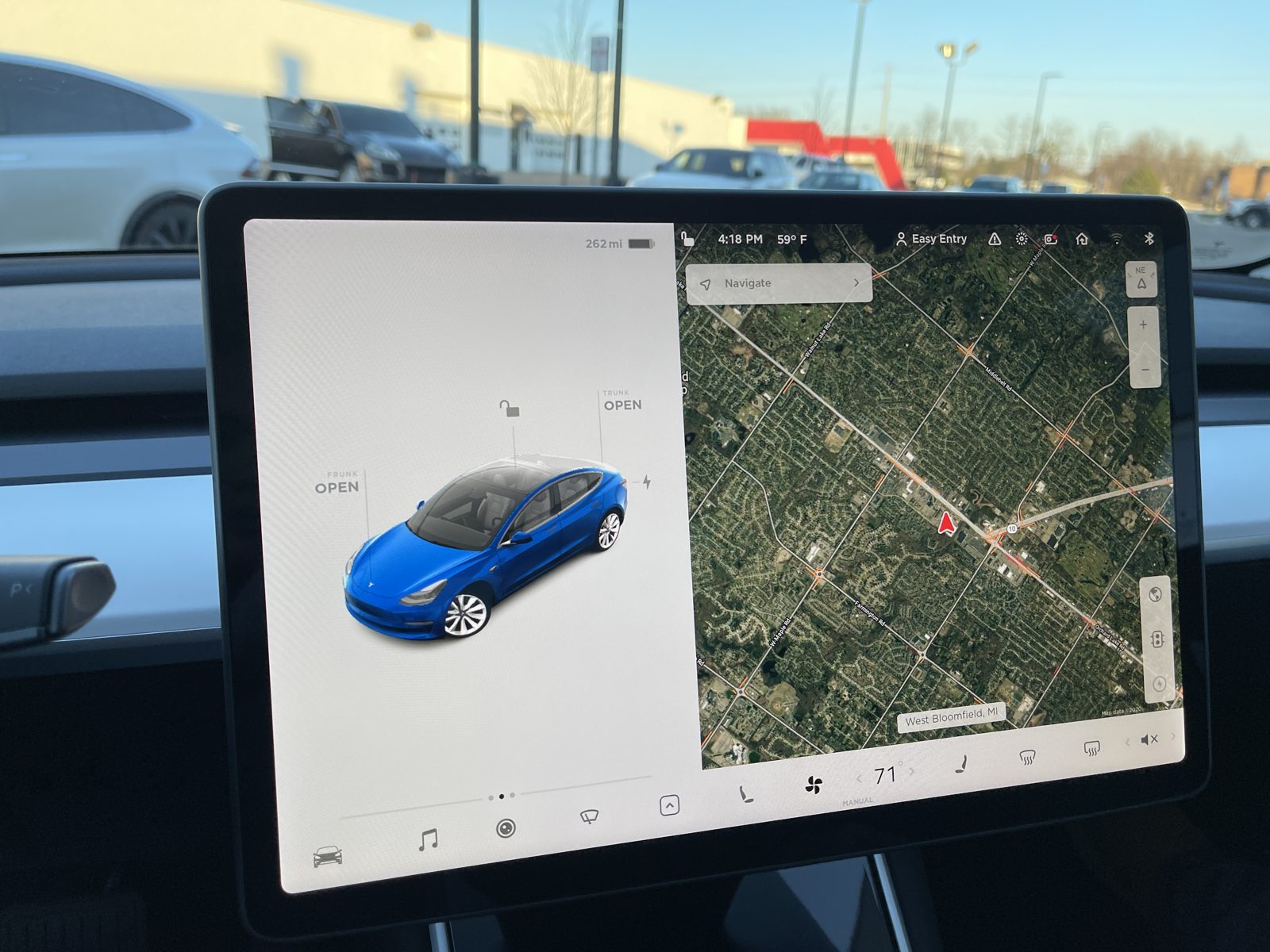
Information current as of July 2026. Feature availability, pricing, and connectivity terms can change with software updates and by region — always confirm details in the Tesla app and on Tesla’s official support pages. This article is general information, not professional advice. Disclosure: contains affiliate/referral links; see our disclosure page. Image credit: “Tesla Model 3 Screen Dec 2020” by SirAsdof, licensed under CC BY-SA 4.0, via Wikimedia Commons.

About the author: Lifei Zhou
Model Y owner since 2022Ontario STO registered apprentice · 310SWorks on Porsche, Mercedes, BMW, Audi weeklyHundreds of readers referred (est.)
Lifei is a Tesla owner based in Canada, writing practical, fact-checked Tesla guides for US and Canadian drivers — buying, ownership, insurance, charging, and TSLA investing, all from first-hand experience.