
Tesla Light Show Guide (2026): How to Start One, Make a Custom Show on USB and Sync Multiple Cars
Tesla Light Show Guide (2026): How to Start One, Make a Custom Show on USB and Sync Multiple Cars

To run a Tesla Light Show, park the car, open Toybox on the touchscreen, tap Light Show, pick a start time, then get out and close the doors. For your own show, build it in the free xLights program, put a matching .fseq file and .wav or .mp3 file in a folder named LightShow on a USB drive, and plug it in. Tesla’s official guide supports Model 3, Model Y, Cybertruck and 2021 or newer Model S and Model X on software v11.0 (2021.44.25) or later.
Disclosure: some links are affiliate/referral links (Tesla referral and Amazon). If you buy through them, we may earn a reward or commission at no extra cost to you. See our disclosure page.
Key facts (checked October 13, 2026)
- Light Show lives in Toybox and only runs while the car is in Park.
- Custom shows need a root folder named LightShow (case-sensitive) with a .fseq file and a .wav or .mp3 file that share the same name.
- The drive can be exFAT, FAT32, MS-DOS FAT, ext3 or ext4. NTFS does not work, and a TeslaCam folder on the drive blocks the show.
- Tesla’s GitHub guide now allows custom shows up to 4 hours long and has removed the general command limit.
- Since the 2024 holiday update, Tesla supports coordinated shows for up to eight cars and lets you start, stop or schedule a show from the Tesla app.
- Boombox needs the external Pedestrian Warning System speaker. A 2022 recall limited it to Park.
Halloween and the holidays are when Tesla owners pull out Light Show. The car flashes its headlights, tail lights and turn signals, folds its mirrors and opens the charge port in time with music. The built-in show takes ten seconds to start. A custom show takes an evening of work the first time, and most of the problems people hit come from the USB drive, not the show itself. This guide walks through both, plus multi-car shows and the Boombox speaker.
📋 Contents
- Which Teslas Can Run a Light Show
- How to Start the Built-In Light Show
- How to Make a Custom Light Show on USB
- Show Limits: Length, Doors and Mirrors
- Running a Synced Show With Several Cars
- Boombox: Custom Sounds From the Outside Speaker
- Troubleshooting a Custom Show That Won’t Load
- Frequently Asked Questions
- Summary
Which Teslas Can Run a Light Show
Tesla’s own light show guide on GitHub lists Model 3, Model Y, Cybertruck, and 2021 and newer Model S and Model X. The car needs software v11.0 (2021.44.25) or newer, which almost every car on the road has by now. If you have not updated in a long time, our Tesla software update guide shows how to check your version and pull the latest release.
A show file is not tied to one model. The same custom show runs on a Model 3, a Model Y or a Cybertruck, and each car plays the channels it has. Newer cars simply have more to play with. A January 2025 change to Tesla’s light show code added channels for the Cybertruck’s front and rear light bars, its off-road light bar, the center display and ambient lighting on the Cybertruck and the refreshed Model 3, as Not a Tesla App reported at the time.
If you are still shopping and the fun stuff matters to you, every new Model 3, Model Y and Cybertruck supports Light Show out of the box. I ordered my Model Y straight from tesla.com without a test drive, and ordering is the same online process for everyone. New buyers who order through a Tesla referral link get 3 months of FSD (Supervised). It generally can’t be combined with the new-car FSD trial or other offers, and Tesla confirms the final perk on your order. Existing and past owners get a purchase credit instead (US$500 or C$650), not FSD.
- December 2021The v11.0 holiday update (2021.44.25) lets owners run custom shows from a USB drive, built in xLights.
- February 2022NHTSA recall 22V-063 covers 578,607 US vehicles. An over-the-air fix disables Boombox in Drive, Neutral and Reverse.
- 2023 holiday updateSoftware 2023.44.25 and newer can store several custom shows on one drive.
- December 2024Coordinated shows for up to eight vehicles, plus start, stop and schedule from the Tesla app.
- January 2025Tesla’s guide raises the maximum show length to 4 hours and adds light bar, display and ambient light channels.
Sources: Tesla light show guide on GitHub, NHTSA, Not a Tesla App.
How to Start the Built-In Light Show
The stock show is the quickest way to see what the car can do. The steps are the same on every supported model:
- Park the car somewhere off the road with some open space in front and behind.
- Tap the app launcher (the three dots at the bottom of the screen) and open Toybox.
- Tap Light Show. Choose a start time with Schedule Show, or start it right away.
- Turn the volume up and roll the windows down if you want the music to carry outside.
- Get out and close all the doors. The show begins at the time you set.
Tesla’s owner’s manual section on Toybox warns that Light Show should not be used on or near public roads because it can distract other drivers. A driveway, an empty parking lot or a private event space is the right setting. Flashing high beams aimed at a busy street is how a fun night turns into a complaint, and many towns also have noise bylaws that apply to music after dark.
Since the 2024 holiday update you can also start, stop or schedule a show from the Tesla app. That is handy when the car is parked across a yard and you are already standing with the crowd.
How to Make a Custom Light Show on USB
Custom shows are built in xLights, a free sequencing program that holiday light hobbyists have used for years. Tesla publishes a ready-made vehicle layout in its GitHub repository, so you do not have to map the car’s lights yourself. You load the layout, import your song, and place effects on a timeline for each light, mirror, window and door channel. Many owners start by editing a show someone else shared, then build their own once they understand the timeline.
When the sequence is done, export it as an .fseq file. Then set up the USB drive exactly the way Tesla’s guide describes. This is the part most people get wrong.
Source: Tesla light show guide on GitHub.
A few details that cost people an evening:
- Audio should be encoded at 44.1 kHz. Tesla’s guide recommends WAV and says a 48 kHz file will not stay in sync with the lights.
- The file names must match exactly, apart from the extension. “Halloween.fseq” and “halloween.wav” are not a pair.
- Keep the drive clean. Tesla says it must not have a TeslaCam folder or any map or firmware update files at the root.
- On software 2023.44.25 or newer, one drive can hold several shows. Older software only reads one.
The quick test is the popup title. If the car shows “Custom Light Show”, it has read your drive. If it only says “Light Show”, the format, folder name or file names are off and the car fell back to the stock show.
Because the dashcam drive cannot share the root with a show, a small dedicated stick saves a lot of swapping. The SanDisk Ultra Fit 256GB is a low-profile USB-A drive that sits almost flush in the port, so it can stay in the car all season. Check which ports your model year has before you buy, since some newer cars only have USB-C up front. If you also use Sentry Mode, our Sentry Mode and dashcam guide covers which drive should go where.
Show Limits: Length, Doors and Mirrors
Older guides you will find online still quote a 5-minute cap and a 681-command limit. Tesla’s current GitHub guide says the maximum length is now 4 hours and the general command limit has been removed. What still has a cap is how many times a show can move the car’s physical parts. Only Open, Close and Dance commands count toward these limits, so lights can flash as often as you like.
Maximum Open, Close and Dance actions per show. Source: Tesla light show guide on GitHub.
In practice this means you save the big moves for the big moments in the song. A liftgate that opens on the final chorus lands much better than one that opens six times in the first minute and then sits still. xLights will let you place more actions than the car accepts, so count them before you export.
Battery use is small compared with a drive, but a long show with the screen, lights and audio running still uses some charge. Keep a reasonable buffer if you plan a long evening, especially in cold weather. Our guide to battery loss while parked explains what draws power when the car is sitting still.
Running a Synced Show With Several Cars
Lining up a row of Teslas is the classic holiday video. Since the 2024 holiday update, Tesla officially supports coordinated shows for up to eight vehicles, designed together in the xLights interface, according to Not a Tesla App’s coverage of that update. The editor lets you see all the cars on one timeline, so you can pass a wave of light from car to car.
The output is still one show file per car. Each car needs its own USB drive with its own file, and the cars have to be parked in the order the show was designed for. A simple system helps:
- Label every drive with its position, such as “Car 1, left”, before the event.
- Park the cars first, then plug in the drives, so nobody ends up with the wrong file.
- Set every car to the same start time with Schedule Show, using the same clock.
- Run one rehearsal with low volume before the crowd shows up.
Use the same audio file on every drive so the music lines up. For a big group, one car playing the song loudly sounds cleaner than eight speakers that are a fraction of a second apart.
Works
- Car in Park, all doors closed
- exFAT or FAT32 drive with a root LightShow folder
- Matching .fseq and 44.1 kHz .wav names
- Open space away from public roads
- One labelled drive per car for synced shows
Breaks it
- NTFS-formatted drive
- TeslaCam folder or map files on the same drive
- Folder named “lightshow” or “Light Show”
- 48 kHz audio that drifts out of sync
- More door or mirror moves than the per-show limit
Source: Tesla light show guide on GitHub and Tesla owner’s manual.
Boombox: Custom Sounds From the Outside Speaker
Boombox is Light Show’s noisy sibling, also in Toybox. It plays sounds through the external Pedestrian Warning System speaker, the one that makes the low hum at parking lot speeds. If your car does not have that speaker, Boombox will not work outside the car. Coverage from when the feature launched said it was limited to cars built after September 1, 2019.
Boombox used to work while driving. In February 2022, Tesla issued NHTSA recall 22V-063 covering 578,607 US vehicles because sounds played while moving could obscure the required pedestrian warning sound. The over-the-air fix disables Boombox in Drive, Neutral and Reverse, so today it is a parked-only feature. A later recall also shut it off during Summon.
Owner guides describe custom Boombox sounds the same way as Light Show: a root folder named Boombox on the USB drive, with short .mp3 or .wav clips in it. The car lists a limited number of custom sounds, commonly reported as five, in alphabetical order. Custom lock sounds sit under Toybox, Boombox, Lock Sound. These menus move a little between software versions, so if a step does not match your screen, look for the same names nearby. For everything else in Toybox, Theater and Arcade, see our Tesla entertainment guide.
Troubleshooting a Custom Show That Won’t Load
Work through these in order. Most failures are fixed by the first three.
| Symptom | Likely cause | Fix |
|---|---|---|
| Popup says “Light Show”, not “Custom Light Show” | Car cannot read the drive or the folder | Reformat as exFAT or FAT32, rename the folder to LightShow |
| Show is not in the drop-down | File names don’t match, or older software | Give the .fseq and audio the same name; update software for multiple shows |
| Drive is ignored completely | TeslaCam folder or map files on the drive | Use a separate drive for the show |
| Lights drift away from the music | 48 kHz audio | Re-export the audio at 44.1 kHz, WAV preferred |
| Doors or mirrors stop moving partway | Per-show closure limit reached | Cut Open, Close and Dance actions to the limits above |
If the car still will not read the drive, unplug it, wait a few seconds and plug it back in. Then try a different port. The glovebox port and the front ports can behave differently on some cars.
Frequently Asked Questions
Can I run a Tesla Light Show while driving?
No. Light Show only runs with the car in Park, and you start it from Toybox or the Tesla app. Tesla’s manual also says not to run it on or near public roads.
Why does my car say “Light Show” instead of “Custom Light Show”?
That means the car is not reading your USB drive and has fallen back to the stock show. Check that the drive is exFAT, FAT32, MS-DOS FAT, ext3 or ext4, that the root folder is named LightShow exactly, and that the .fseq and audio files share a name.
Can I keep my light show on the same USB drive as my dashcam?
Not at the same time. Tesla’s guide says the drive must not have a TeslaCam folder or map or firmware update files at the root. A second small drive is the easy answer.
How long can a custom Tesla light show be?
Tesla’s current GitHub guide says up to 4 hours, and the old general command limit is gone. The car still caps how many times a show can open and close parts like the liftgate, windows and charge port.
How many Teslas can do a synced light show?
Tesla officially supports coordinated shows for up to eight vehicles, added in the 2024 holiday update. Each car gets its own file on its own USB drive, and the cars must be parked in the order the show was built for.
Does Light Show work on older Model S and Model X?
Tesla’s guide lists 2021 and newer Model S and Model X. Older Model S and X are not on the supported list.
Does Light Show use a lot of battery?
It uses some charge for the lights, screen and audio, but far less than driving. If you plan a long evening, especially in winter, start with a comfortable buffer.
Summary
- Built-in show: park, open Toybox, tap Light Show, set a time, get out and close the doors.
- Custom show: build in xLights, then a root LightShow folder with a matching .fseq and 44.1 kHz .wav or .mp3.
- Use exFAT or FAT32, never NTFS, and keep the show off your dashcam drive.
- Shows can now run up to 4 hours, but doors, mirrors, windows and the charge port have per-show limits.
- Up to eight cars can run a coordinated show, one labelled drive per car.
- Boombox needs the external pedestrian speaker and works in Park only since the 2022 recall.
Order a Tesla with 3 months of FSD (Supervised) →
More guides for owners are in our US Tesla section.
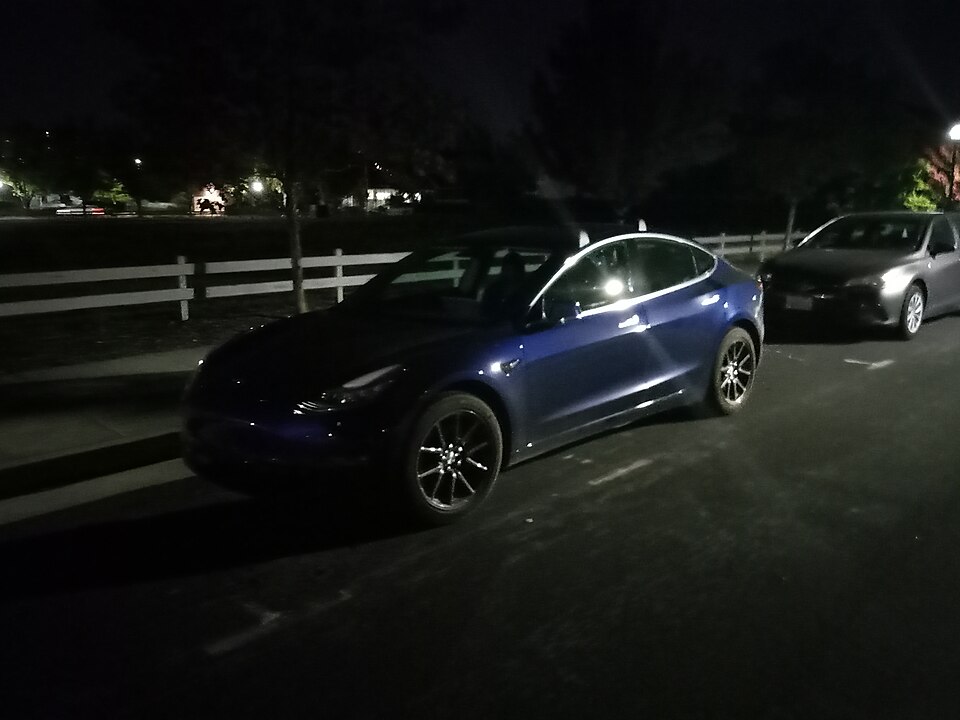
Image credit: “Blue Tesla Model 3 at night” by Sonny doe, licensed under CC BY-SA 4.0, via Wikimedia Commons. Resized.

About the author: Lifei Zhou
Model Y owner since 2022Ontario STO registered apprentice · 310SWorks on Porsche, Mercedes, BMW, Audi weeklyHundreds of readers referred (est.)
Lifei is a Tesla owner based in Canada, writing practical, fact-checked Tesla guides for US and Canadian drivers — buying, ownership, insurance, charging, and TSLA investing, all from first-hand experience.