
Tesla Camera System Guide (2026): Backup, Blind-Spot, Front Bumper & Dashcam Explained
Tesla Camera System Guide (2026): Backup, Blind-Spot, Front Bumper & Dashcam Explained

In one sentence
Where every Tesla camera is and what it does — backup, blind-spot, front bumper and cabin views, plus Dashcam/Sentry USB setup and fixing 'camera blocked' errors.
Every modern Tesla drives, parks, and protects itself using cameras — and only cameras. There’s no radar hiding behind the badge and no ultrasonic parking sensors buried in the bumpers. That “Tesla Vision” approach is why the backup view looks so crisp, why a live feed of your blind spot pops up when you flick the turn signal, and why your car can quietly film a hit-and-run in a parking lot. It’s also why a smudge of road grime can throw a “camera blocked or blinded” warning and briefly disable Autopilot.
This guide maps out exactly where every camera on your Tesla lives, what each one does, and how to actually use the views that matter day to day. We’ll also cover setting up Dashcam and Sentry Mode the right way, checking your feeds remotely, and fixing the camera errors that trip up new owners. Everything below reflects the 2026 lineup — including the refreshed Model Y (“Juniper”) and Cybertruck.
Disclosure: some links are affiliate/referral links, and we may earn a commission at no extra cost to you. See our disclosure page.
📋 Contents
- How Many Cameras Does a Tesla Have — and Where Are They?
- Tesla Vision: Why There Are No Parking Sensors or Radar
- The Camera Views You’ll Actually Use Every Day
- Dashcam and Sentry Mode: Turning Your Cameras Into a Security System
- Viewing Your Cameras Remotely
- “Camera Blocked or Blinded” and Other Common Problems
- Keeping Your Cameras Clear (and Your Footage Watchable)
- Buying a New Tesla? The Cameras Come Standard
- Frequently Asked Questions
- The Bottom Line
How Many Cameras Does a Tesla Have — and Where Are They?
For most of the current lineup, the answer is eight exterior cameras plus one cabin camera. Tesla’s long-standing “eight-camera” surround suite is arranged to give the car a nearly 360-degree picture of its surroundings. Here’s where they sit and what each is for.
| Camera | Location | Main job |
|---|---|---|
| Forward cameras | Top of the windshield, behind the mirror | Long-, medium-, and wide-angle views ahead for Autopilot, traffic-aware cruise, and sign reading |
| B-pillar cameras | On each B-pillar (where the front door meets the roof) | Look forward and to the sides for lane changes, cross-traffic, and Autopark |
| Fender (repeater) cameras | Front fenders, angled rearward ~45° | Cover the rear blind spots; these feed the automatic blind-spot view |
| Rear camera | Above the license plate | Backup view, reverse emergency braking, and Sentry/Dashcam |
| Front bumper camera | Lower front bumper (new Model Y “Juniper” and Cybertruck) | Removes the blind spot directly ahead for tight parking and FSD maneuvers |
| Cabin camera | Above the rearview mirror, inside | Driver-attention monitoring while Autopilot/FSD is active |
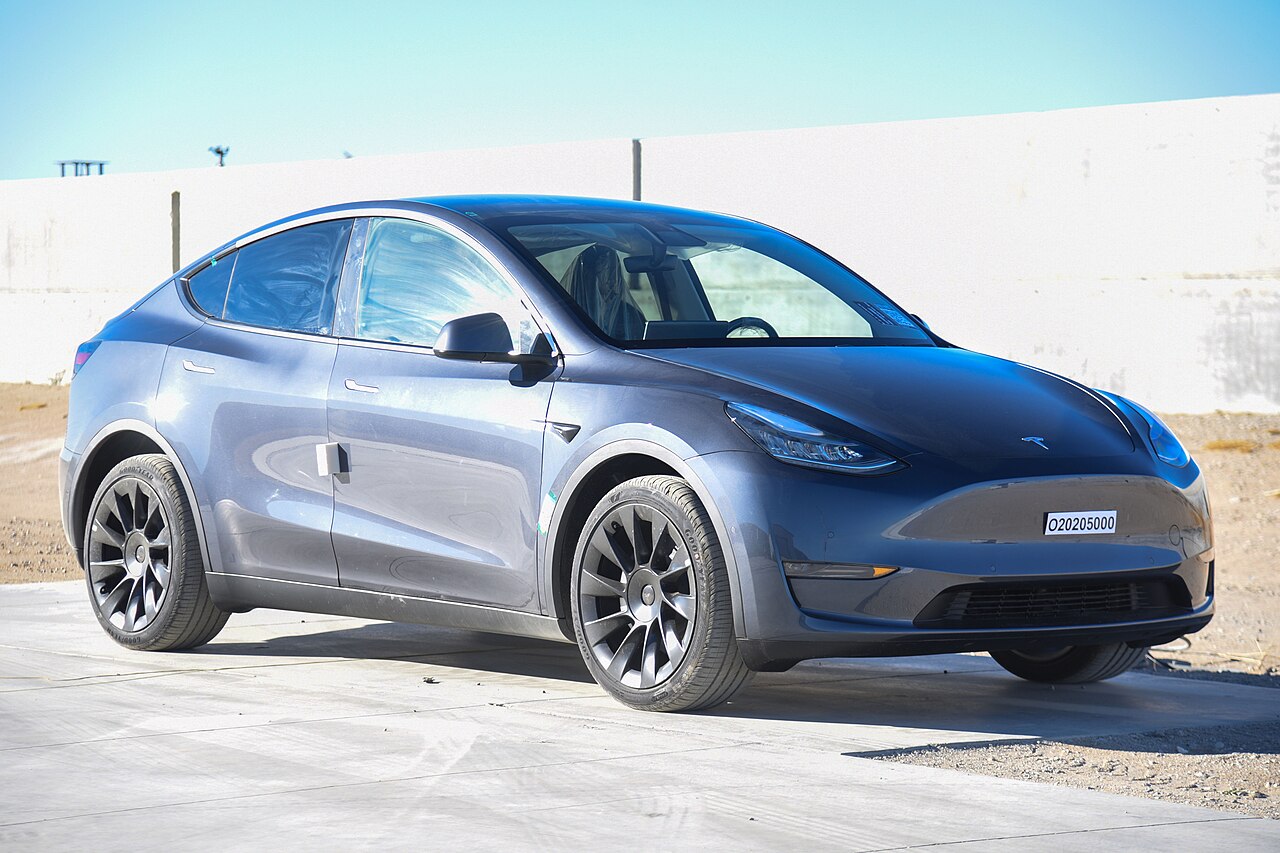
The big 2026 story is that added front bumper camera. The refreshed Model Y and the Cybertruck now carry a forward-facing lens down low, which eliminates the old blind spot right in front of the nose — a genuine help when you’re nosing into a tight garage or a curb-side spot. On the Model Y Juniper it even has a tiny washer nozzle to clear salt and slush. Older Model 3 and Model Y cars, and the current Model 3, rely on the eight-camera arrangement without that bumper lens.
Hardware matters here, too. Cars built in recent years use Tesla’s Hardware 4 (also called AI4) camera set, with higher-resolution sensors than the older HW3 suite. If you’re curious whether your car’s cameras can keep pace with the latest Full Self-Driving builds, our HW3 vs HW4 breakdown explains what each generation can and can’t do.
Tesla Vision: Why There Are No Parking Sensors or Radar
If you’re coming from another brand, the missing parking sensors can feel jarring. Tesla began removing ultrasonic sensors from the Model 3 and Model Y in late 2022 (Model S and X followed), and dropped forward radar as well. Since then, driver-assist and parking features run entirely on the camera suite Tesla calls Tesla Vision.
The upside is a richer, more human-like read of the world; the downside was a rough transition. When the sensors first disappeared, Autopark, Summon, and the close-range parking chimes went away for months. Tesla eventually rebuilt them with a “High Fidelity Park Assist” visualization that reconstructs nearby objects on the screen using the cameras alone. On 2026 cars it works well in good light, though it can still be less precise than physical sensors when it’s dark, foggy, or the lenses are dirty. If Autopark and Summon are part of your routine, our Tesla app guide covers how to trigger and monitor those features from your phone.
The Camera Views You’ll Actually Use Every Day
Most owners interact with three views constantly: the backup camera, the automatic blind-spot view, and (on newer cars) the front camera view.
Backup camera. Shift into reverse and the rear feed fills the screen, complete with dynamic guidelines. U.S. rules require a rear-visibility (backup) camera on new light vehicles under NHTSA’s rear-visibility standard, and Tesla’s is among the sharper implementations out there. You can pin the rear feed on-screen at low speeds even when you’re not in reverse — handy in stop-and-go or when hitching up a trailer.
Automatic blind-spot camera. This is the feature owners fall in love with. Flip a turn signal and the screen shows a live feed from that side’s fender camera; if a car is sitting in your blind spot, a red bar appears along the edge of the image to warn you. Turn it on under Controls > Safety > Automatic Blind Spot Camera, and choose whether it shows on the center screen or (on cars with an instrument display) the driver screen. You can even drag the image to a spot on the display you like better.
Front camera view. On cars with the front bumper camera, you get a forward view for creeping up to a wall, a curb, or a charging bollard without guessing. Combined with the park-assist visualization, it makes tight parking far less nerve-racking than early Tesla Vision cars ever were.
Dashcam and Sentry Mode: Turning Your Cameras Into a Security System
Here’s where the cameras earn their keep even when you’re not driving. Dashcam continuously records the road while you drive and saves clips when you tap the icon or trigger the horn. Sentry Mode keeps the cameras watching while the car is parked and locked, recording anyone who leans in, taps the glass, or leans on the door — and flashing a warning on the screen. Both are built in; both need one thing you have to supply yourself: storage.
Tesla records to a USB drive plugged into the designated front port (the glovebox port on some models). Skimp on the drive and you’ll get dropped clips or corrupted files, so it’s worth matching Tesla’s spec. Here’s what the car actually needs:
| Requirement | What to use |
|---|---|
| Capacity | At least 64 GB; more is better (Sentry writes a lot of footage) |
| Sustained write speed | At least 4 MB/s continuous — cheap “flash” drives often can’t keep up |
| Format | exFAT (or let the car format it: Controls > Safety > Format USB Drive) |
| Interface | USB 2.0 compatible (a USB 3.x drive is fine as long as it falls back to 2.0) |
For a plug-in-and-forget option, a compact high-endurance flash drive like the SanDisk Ultra Fit 256 GB sits nearly flush in the port and gives Sentry plenty of room. If you run Sentry a lot and want footage that survives years of constant writes, step up to a portable SSD such as the Samsung T7 Shield 1 TB — SSDs handle the endurance far better than a generic thumb drive, which tends to fail within months. Expect to pay in the low tens of dollars for a good flash drive and more for a 1 TB SSD; prices bounce around, so check current listings.
Once you’ve got a drive that works, dial in the settings — auto-save behavior, Sentry exclusions for your home and work, and how to pull clips off the drive — in our dedicated Sentry Mode and Dashcam guide.
Viewing Your Cameras Remotely
Your cameras aren’t just for the driver’s seat. With an active Premium Connectivity or Wi-Fi connection, the Tesla mobile app can pull a live view from the car’s cameras while it’s parked, so you can glance at the vehicle from your office or a restaurant. Sentry Mode events also push notifications to your phone, and you can review the flagged moments later. It’s not a replacement for a dedicated home security camera, but for keeping an eye on your car in a sketchy lot, it’s reassuring. The remote camera and other app tricks are covered in our complete Tesla app guide.
“Camera Blocked or Blinded” and Other Common Problems
Sooner or later you’ll see a message that one or more cameras is blocked or blinded, usually paired with a note that some Autopilot features are temporarily unavailable. It sounds alarming but it’s almost always benign. The cameras simply can’t see clearly because of:
- Dirt, road grime, bug splatter, snow, or ice on a lens
- Heavy rain, fog, or low light
- Direct sun or glare washing out the image
- Condensation — sometimes on the inside of the front camera housing
The fix for external gunk is simple: gently wipe the affected lens with a clean, soft microfiber cloth and a little water. Keep a pack of microfiber lens cloths in the door pocket so you’re never tempted to use a paper towel or a shirt sleeve, which can scratch the coating. For the B-pillar and fender cameras, a quick swipe usually clears the alert by your next drive.
Internal condensation in the front camera can’t be wiped away, but you can speed it up: park, set the climate to a high temperature with the A/C on, and let the housing warm and dry. If a “camera blocked” alert refuses to clear after a full drive despite clean lenses, that’s your cue to book a service appointment. And if you’ve just taken delivery, don’t panic if cameras need to “calibrate” over your first 20–100 miles — that’s normal, and it’s why Autosteer may be greyed out at first. For a broader cleaning routine that keeps every lens (and the rest of the car) spotless, see our how to clean a Tesla guide.
Keeping Your Cameras Clear (and Your Footage Watchable)
A camera-only car rewards a little upkeep. A few habits go a long way:
- Wipe the rear and fender lenses during every wash — they collect the most road film, and a dirty rear camera makes night backups miserable.
- Don’t blast the lenses with a pressure washer at point-blank range; keep some distance to avoid forcing water into the housings.
- Check your Sentry drive monthly. If clips stop saving, reformat the drive from the screen or swap in a fresh one before you actually need the footage.
- Reduce screen glare. Since you’ll be reading camera feeds on the touchscreen, a matte anti-glare screen protector can make the backup and blind-spot views easier to see in bright sun while cutting fingerprints.
If you’re shopping for storage, cleaning supplies, or protection like this, our Tesla accessories hub rounds up the gear that’s actually worth buying.
Buying a New Tesla? The Cameras Come Standard
One nice thing about Tesla’s approach: the full camera suite — Dashcam, Sentry Mode, backup and blind-spot views — is standard hardware on every new car, no options box to check. If you’re ordering a Model 3, Model Y (including the new Model Y L), or Cybertruck, placing your order through a Tesla referral link currently adds 3 months of free Full Self-Driving (Supervised), which generally doesn’t stack with the standard trial — a no-cost perk that pairs well with the built-in camera features you’ll be using from day one. New to how referrals work? Our referral code guide walks through it.
Frequently Asked Questions
How many cameras does a 2026 Tesla have?
Most 2026 Teslas have eight exterior cameras plus one interior cabin camera. The refreshed Model Y (“Juniper”) and the Cybertruck add a dedicated front bumper camera for a clearer forward view when parking and using FSD.
Do I need a USB drive for Dashcam and Sentry Mode?
Yes. The cameras are built in, but Tesla records footage to a USB drive you supply. Use at least a 64 GB drive with a sustained write speed of 4 MB/s or more, formatted as exFAT. A compact high-endurance flash drive or a portable SSD is far more reliable than a generic thumb drive.
Why does my Tesla say “camera blocked or blinded”?
It means a lens can’t see clearly — usually from dirt, snow, ice, condensation, glare, or heavy weather. Wipe the affected lens with a microfiber cloth; the alert typically clears within a drive or two. If it persists after cleaning, schedule service.
Does Tesla still have parking sensors?
No. Tesla removed ultrasonic parking sensors (and radar) in favor of a camera-only system called Tesla Vision. Close-range parking guidance now comes from the cameras via the High Fidelity Park Assist visualization on the screen.
Can I watch my Tesla’s cameras from my phone?
Yes. With Premium Connectivity or Wi-Fi, the Tesla app can show a live camera view of the parked car, and Sentry Mode sends alerts when it detects activity so you can review the footage later.
How do I turn on the blind-spot camera?
Go to Controls > Safety > Automatic Blind Spot Camera and enable it. Choose the center screen or the driver display for where the feed appears. After that, engaging a turn signal shows a live view of that side, with a red bar warning you if a vehicle is in your blind spot.
The Bottom Line
- Every current Tesla uses a camera-only system: eight exterior cameras plus a cabin camera, with a new front bumper camera on the refreshed Model Y and Cybertruck.
- The views you’ll use daily are the backup camera, the automatic blind-spot feed (turn-signal activated, with red-bar warnings), and the front view on newer cars.
- Dashcam and Sentry Mode are built in but need a 64 GB+ exFAT USB drive with real sustained write speed — a high-endurance flash drive or SSD, not a bargain-bin stick.
- “Camera blocked or blinded” is almost always dirt, weather, or condensation; a microfiber wipe usually clears it.
- Keep the lenses clean, check your Sentry drive monthly, and the whole system quietly does its job.
Ready to put those cameras to work? If you’re ordering a new Model 3, Model Y, or Cybertruck, using a Tesla referral link at checkout adds 3 months of free Full Self-Driving (Supervised) at no extra cost — a nice bonus on a car that already films and watches over itself out of the box.
Information current as of August 2026 and subject to change as Tesla updates its software and hardware; always confirm specifics against your car’s owner’s manual and on-screen settings. This article is for general information only and is not professional or safety advice. Some links are affiliate/referral links — see our disclosure page. Image credit: U.S. National Highway Traffic Safety Administration (NHTSA), public domain, via Wikimedia Commons.
Sources: Tesla Owner’s Manual — Sentry Mode; Tesla Owner’s Manual — USB Drive Requirements; Tesla Owner’s Manual — Cameras & Blind Spot; NHTSA — FMVSS 111 Rear Visibility.
About the author: Lifei Zhou
Model Y owner since 2022Ontario STO registered apprentice · 310SWorks on Porsche, Mercedes, BMW, Audi weeklyHundreds of readers referred (est.)
Lifei is a Tesla owner based in Canada, writing practical, fact-checked Tesla guides for US and Canadian drivers — buying, ownership, insurance, charging, and TSLA investing, all from first-hand experience.