
How to Update Your Tesla Software in 2026: Advanced Mode, Wi-Fi Fixes & What’s New
How to Update Your Tesla Software in 2026: Advanced Mode, Wi-Fi Fixes & What’s New

In one sentence
How Tesla OTA updates work in 2026: Standard vs Advanced, getting updates sooner, fixing stuck downloads, OTA recalls, and what 2026.26 and 2026.32 bring.
One of the best things about owning a Tesla is that the car keeps changing after you drive it home. Over-the-air (OTA) software updates add features, fix bugs, push new versions of FSD (Supervised) and even deliver recall remedies without a service visit. But plenty of owners in the U.S. and Canada end up wondering why their neighbour already has the new version, why the car says “update available” but never installs it, or whether it’s safe to hit Install at 7:45 on a weekday morning. This guide covers how Tesla software updates actually work in 2026, how to get them sooner, how to fix a stuck update, and what the current releases bring.
Disclosure: some links are affiliate/referral links. If you buy through them we may earn a commission or referral credit at no extra cost to you. See our disclosure page.
📋 Contents
- How Tesla Software Updates Work (The 60-Second Version)
- How to Update Your Tesla, Step by Step
- Standard vs. Advanced: Should You Get Updates Early?
- What’s New in 2026: The Releases Worth Knowing
- Wi-Fi Setup That Actually Works in a Garage or Driveway
- Update Stuck, Failed or Not Showing? Here’s the Fix
- Recalls Delivered by OTA: How to Check Your VIN
- Smart Habits for Every Update
- Frequently Asked Questions
- Key Takeaways
How Tesla Software Updates Work (The 60-Second Version)
Tesla ships one software stack to the whole fleet, then releases each new version in stages. A new build first goes to employees and a small group of early-access testers, then to a small slice of customer cars, and then, if Tesla’s telemetry doesn’t show problems, to more and more of the fleet over days or weeks. Each version is labelled by year and week, so 2026.32 is the software branch built around week 32 of 2026, and the extra digits (for example 2026.32.7) are the point releases that fix bugs.
Three things decide when your car gets a given update:
- Your configuration. Model, hardware (HW3 vs. AI4/HW4), region and market. A Canadian Model Y and a Texas Cybertruck may be offered different builds on the same day.
- Your update preference. Standard or Advanced (explained below).
- Connectivity. Tesla says Wi-Fi is the fastest and most reliable way to receive updates. A car that never sees Wi-Fi often waits much longer.
What you cannot do is pick a version, skip ahead of your wave on demand, or roll back to an older build. There’s also no charge: firmware updates are free for the life of the car. Paid items such as FSD (Supervised) or Premium Connectivity unlock features, but the software itself comes to every owner.
How to Update Your Tesla, Step by Step
Here’s the normal routine for a Model 3, Model Y, Cybertruck or recent Model S/X in 2026:
- Connect the car to Wi-Fi. Tap the Wi-Fi icon at the top of the touchscreen (or Controls > Wi-Fi), pick your home network and enter the password. The car remembers it and reconnects every time you park at home.
- Check what you’re running. Go to Controls > Software. You’ll see the current version number, and if an update is waiting, the screen tells you whether it’s still downloading or ready to install.
- Watch for the notification. When an update is ready, an icon appears in the status bar at the top of the touchscreen and you’ll usually get a push notification from the Tesla app.
- Install now or schedule it. Tap the update icon or open Controls > Software, then choose to install immediately or set a start time (overnight is the obvious choice). You can also start the install from the Software section of the Tesla app, which is handy when the car is in the garage and you’re on the couch.
- Leave the car alone. The vehicle must be in Park, and once installation begins you can’t drive it. Most installs take somewhere in the 20–45 minute range; the screen shows an estimate before you commit. If the car was charging, charging pauses and resumes afterward.
- Read the release notes. After the reboot, tap Controls > Software > Release Notes. This is where Tesla explains new features, and it’s worth a minute, because new settings are sometimes turned off by default.
If you’re new to the app side of ownership (phone key, scheduled departure, remote climate), our Tesla app guide walks through every screen.
Standard vs. Advanced: Should You Get Updates Early?
Under Controls > Software > Software Update Preference you’ll find two options. Tesla describes Advanced as the setting for early adopters: you receive updates as soon as they’re available for your configuration and region, which means more releases. Standard waits until other owners have installed, so you see fewer, more settled builds.
| Standard | Advanced | |
|---|---|---|
| Timing | Later waves, after other owners have installed | Earliest eligible wave for your car |
| Number of installs | Fewer; point releases often skipped | More frequent, including quick bug-fix builds |
| Bug exposure | Lower; early issues are usually patched first | Slightly higher; you may see a first-build glitch |
| Best for | Daily commuters, fleet/rideshare drivers, anyone who needs zero surprises | FSD subscribers, feature fans, owners who read release notes |
| Guarantee | None | None; it improves your odds, it doesn’t jump the queue |
Our take: turn on Advanced if you subscribe to FSD (Supervised) or just enjoy new features, and keep Standard if the car is your only way to get to work and a rare first-build bug would ruin your week. Either way, flipping to Advanced does not make an update appear instantly. It puts you in the earliest group for your configuration, and Tesla still controls the pace. Owners who see a friend with a newer version usually have a different model, hardware generation or region, or simply haven’t been picked yet.
What’s New in 2026: The Releases Worth Knowing
As of late September 2026, most North American cars are on either the 2026.26 Summer Update branch or the newer 2026.32 branch, with FSD builds shipping on their own parallel branch. Here’s a quick map of what each one brought, based on Tesla’s release notes as published by owner trackers:
| Release | Timing | Headline changes |
|---|---|---|
| 2026.20 | Spring–summer 2026 | Parental controls, Sentry Mode encryption, “Hey Grok” voice assistant |
| 2026.26 (Summer Update) | Summer 2026 | Preferred Routes, smarter Automatic Navigation that learns regular stops, more Grok commands (calls, music, climate), three traction control modes (Auto, Slippery Surface, Stuck Assist), karaoke scoring; bundled FSD v14.3.8 in North America |
| 2026.27 (FSD branch) | August–September 2026 | FSD v14.3.9 / v14.3.10 on AI4 (HW4) cars; v14.2 Lite on HW3 cars |
| 2026.32 | First seen Sept. 9, 2026; widening in late September | Redesigned wheel selection screen, Apple Music library search, security patches, bug fixes |
The traction control modes are the sleeper feature for Canadian and northern U.S. owners: Stuck Assist is designed for exactly the snowbank-at-the-end-of-the-driveway moment. Pair it with proper winter tires if you drive in real snow.
One important caveat on FSD: HW3 and AI4 cars now run different FSD builds. HW3 gets the “Lite” versions, which are distilled and less capable. If you’re not sure which computer you have, go to Controls > Software > Additional Vehicle Information and look at the Autopilot computer line, then read our HW3 vs. HW4 FSD explainer. Also note that North American cars delivered since January 2026 no longer include basic Autosteer; lane-keeping now comes with an FSD (Supervised) subscription at $99 a month in the U.S. (and $99 CAD in Canada). If you’re still shopping, ordering a Model 3, Model Y or Cybertruck through a Tesla referral link adds 3 months of free FSD (Supervised), which generally doesn’t stack with the standard 30-day trial but is a good way to see the newest builds without paying.
Wi-Fi Setup That Actually Works in a Garage or Driveway
Most “my Tesla won’t update” complaints come down to one thing: weak Wi-Fi where the car is parked. The router sits in a basement office or on the far side of the house, the garage has a steel door and insulated walls, and the car shows one bar. It connects, the download starts, and then it stalls at 37% for three days.
What helps, in order of cost:
- Check the bars first. Pull into your usual spot and look at the Wi-Fi icon. Two or more solid bars is usually fine; one bar or a flickering icon is the problem.
- Join the 2.4 GHz network if you have a choice. 5 GHz is faster but fades through walls. If your router broadcasts separate networks, the 2.4 GHz one often reaches the garage better.
- Use your phone as a hotspot for a stuck download. Park, turn on your phone’s personal hotspot, connect the car to it and let it finish. Big updates can be well over a gigabyte, so keep an eye on your data plan.
- Add a range extender or mesh node near the garage. A plug-in Wi-Fi 6 extender on the wall closest to the car is the permanent fix. The TP-Link RE715X AX3000 extender is a well-reviewed pick with an Ethernet port if you want to wire it into a garage access point, and the smaller TP-Link RE615X costs less and is plenty for one car. Expect to pay roughly $60–$130 USD; setting either one up takes about 10 minutes.
If you live somewhere rural with no cable or fibre, a satellite connection can do the same job. A number of Canadian owners on acreages and at cottages use Starlink as their home internet, and the car happily joins the Starlink Wi-Fi like any other network, which keeps updates, map data and TeslaCam uploads flowing. If that’s you, here’s a Starlink referral link for Canadian customers (it doesn’t work for U.S. orders). Owners who run a Starlink Mini in the car on trips power it with a USB-C to DC cable such as JOWUA’s Starlink Mini power cable for Tesla (use code TSLNA for 5% off). Our rural Tesla ownership guide covers the rest of the off-grid picture.
And what about cellular? Every Tesla has an LTE modem, and Premium Connectivity ($9.99/month or $99/year in the U.S.; $13.99/month or $140/year in Canada) adds live traffic, streaming and satellite maps. But Tesla’s own guidance is still to use Wi-Fi for software updates, so don’t count on LTE to get large firmware packages to your car quickly.
Update Stuck, Failed or Not Showing? Here’s the Fix
Use this table to match the symptom to the fix. Work top to bottom; most problems end at step one or two.
| Symptom | Likely cause | What to do |
|---|---|---|
| “Update available, connect to Wi-Fi” | No saved network in range | Join home Wi-Fi or a phone hotspot and leave the car parked |
| Download stuck at the same percentage | Weak or dropping signal | Move the car closer to the router, switch to hotspot, or add an extender |
| Friends have a version you don’t | Staged rollout / different configuration | Set Advanced, stay on Wi-Fi, be patient; you can’t force it |
| Screen frozen or update won’t start | Touchscreen glitch | Soft reset: in Park, hold both steering wheel scroll buttons until the screen goes black and restarts |
| “Software update was not completed” | Interrupted install | Retry from Controls > Software; if it fails again, book a Service request in the app |
| Low-voltage warnings around the update | Weak 12V/low-voltage battery | Get it checked; see our 12V battery guide below |
Two more tips. First, if your car has thrown low-voltage battery alerts, deal with that before a big update; our Tesla 12V battery guide explains the warning signs. Second, if a failed install leaves you with a car that won’t shift out of Park, don’t keep power-cycling it. Open a service request in the Tesla app. Tesla can often push or repair software remotely without a mobile tech visit.
Recalls Delivered by OTA: How to Check Your VIN
A lot of the Tesla “recalls” you read about in headlines are fixed by a software update rather than a shop visit. The remedy still gets filed with regulators, so it’s worth confirming that your car has it, especially if you’re buying used.
- U.S. owners: enter your 17-character VIN on NHTSA’s recall lookup. An open recall with an OTA remedy usually clears once your car installs the fix.
- Canadian owners: use Transport Canada’s Motor Vehicle Safety Recalls Database, which lists recalls issued for vehicles sold in Canada.
- Buying used: check the VIN on both sites, then look at Controls > Software on the test drive. A car sitting on a years-old version is a sign it’s been parked without Wi-Fi or ignored.
For the official word on how Tesla handles updates, see its Software Updates support page.
Smart Habits for Every Update
- Schedule overnight. A scheduled install at 2 a.m. means you never find the car mid-reboot when you’re late.
- Don’t install right before a trip. If you leave for a road trip Saturday morning, don’t start a new build Friday night. Install after you’re back, or at least a day before.
- Read the release notes, then check your settings. Tesla sometimes adds new toggles (driving visualization, arrival options, Grok permissions) that default to off, and sometimes resets profile tweaks.
- Keep the screen clean and protected. You’ll be tapping through new menus more than you think. A tempered glass protector such as JOWUA’s matte screen protector for Model 3/Y cuts glare and fingerprints; order the 15.4″ version for Model 3 (2024+) and Model Y (2025), or the 16″ version for Model Y 2026+. Use code TSLNA at JOWUA for 5% off.
- Don’t panic over a first-build bug. Point releases usually arrive within days. If something safety-related misbehaves, report it through the app and via NHTSA or Transport Canada.
Frequently Asked Questions
How often does Tesla release software updates?
New branches come every few weeks, with point releases (bug fixes) in between. On Advanced you might install an update every two to four weeks; on Standard, less often. FSD builds follow their own schedule and can arrive between regular releases.
Can I drive my Tesla while a software update is installing?
No. The car must be in Park and can’t be driven until the install finishes, typically somewhere in the 20–45 minute range. You can drive normally while an update is only downloading.
Does Advanced mode guarantee I get updates first?
No. Advanced puts your car in the earliest eligible wave for its configuration and region, but Tesla still controls the rollout. Model, hardware and market all affect timing.
Do Tesla software updates cost money?
No. Firmware updates are free. Some features need a paid subscription (FSD (Supervised), Premium Connectivity), but the update itself doesn’t cost anything.
Can I roll back a Tesla update I don’t like?
No. Owners can’t downgrade firmware. If a new version causes a real problem, report it and file a service request in the Tesla app; fixes usually come in a point release.
Why does my Tesla say an update is available but it won’t download?
Almost always weak or missing Wi-Fi where the car is parked. Check the bars, try a phone hotspot, or move the router or add an extender closer to the garage. A soft reset can also restart a stuck download.
Do Canadian Teslas get the same updates as U.S. cars?
Mostly, yes, often on the same branches, though timing and some features differ by market. FSD (Supervised) is available in Canada, and the traction control and navigation features in 2026.26 apply to both countries.
Key Takeaways
- Tesla updates are free, roll out in stages, and can’t be picked, forced or rolled back.
- Set Controls > Software > Software Update Preference to Advanced for earlier releases, or Standard for fewer, more settled builds.
- Strong Wi-Fi where you park solves most problems: a phone hotspot is the quick fix, an extender is the permanent one.
- Schedule installs overnight, never right before a trip, and read the release notes afterward.
- 2026.26 brought traction control modes and smarter navigation, 2026.32 is rolling out now, and HW3 and AI4 cars run different FSD builds.
- Check recalls by VIN on NHTSA (U.S.) or Transport Canada; many are fixed over the air.
- Still shopping? Order through a Tesla referral link to get 3 months of free FSD (Supervised) with your new Model 3, Model Y or Cybertruck. Browse more guides in our US Tesla and Canada Tesla sections.
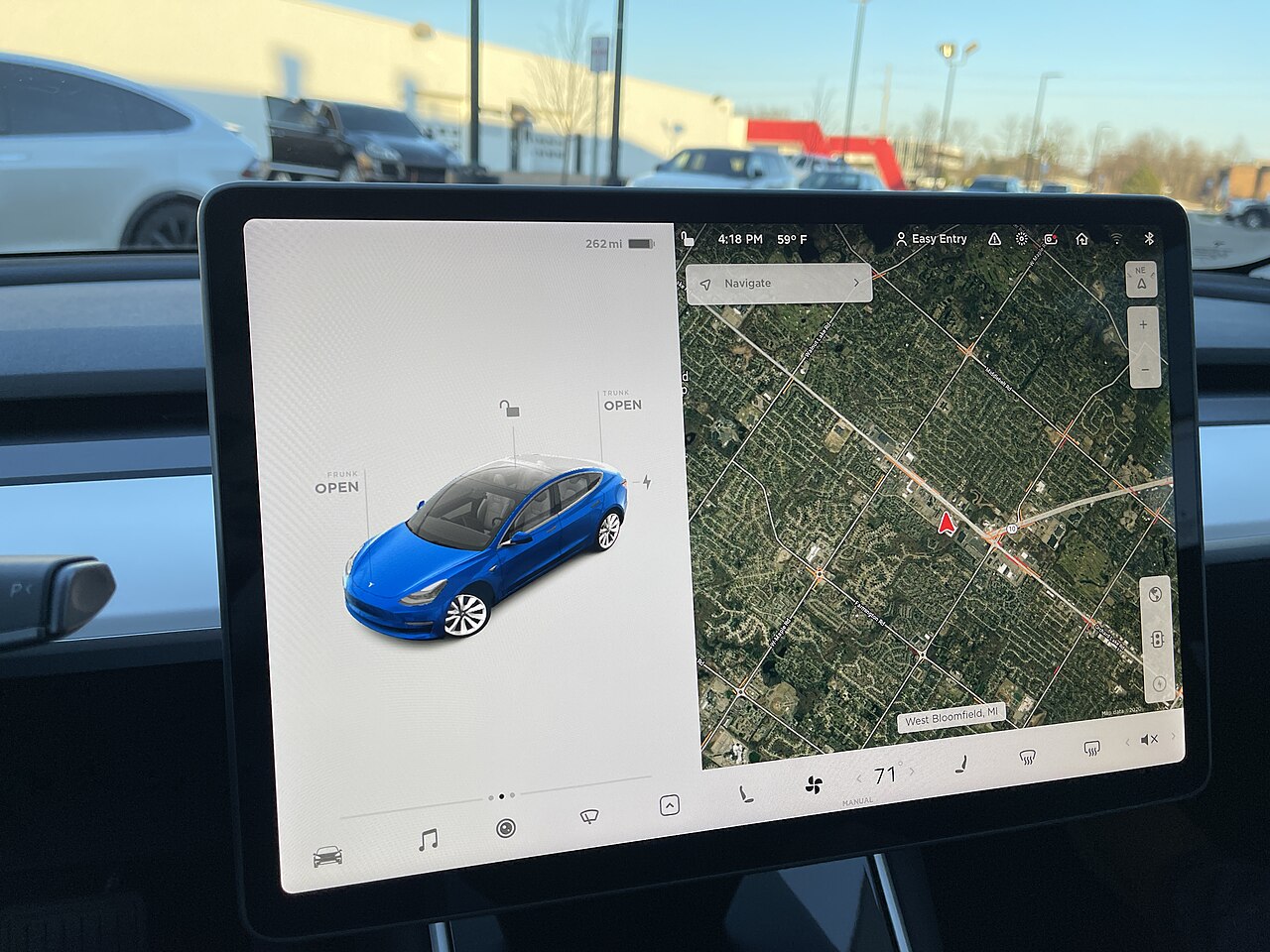
Information current as of September 25, 2026. Software versions, rollout timing, features and subscription prices change often and can vary by vehicle and region; check your car’s release notes and Tesla’s website for the latest. Some links are affiliate/referral links (see our disclosure page). Image credit: “Tesla Model 3 Screen Dec 2020” by SirAsdof, licensed under CC BY-SA 4.0, via Wikimedia Commons.

About the author: Lifei Zhou
Model Y owner since 2022Ontario STO registered apprentice · 310SWorks on Porsche, Mercedes, BMW, Audi weeklyHundreds of readers referred (est.)
Lifei is a Tesla owner based in Canada, writing practical, fact-checked Tesla guides for US and Canadian drivers — buying, ownership, insurance, charging, and TSLA investing, all from first-hand experience.