
Tesla Keys Explained: Phone Key, Key Card & Key Fob (2026 Setup & Fixes)
Tesla Keys Explained: Phone Key, Key Card & Key Fob (2026 Setup & Fixes)

In one sentence
How the Tesla phone key, key card, and key fob work on Model 3 and Model Y in 2026 — setup, managing keys, lockout fixes, security, and which key to rely on.
Your Tesla doesn’t come with a chunky key that lives in your pocket. Instead, it ships with a slim credit-card-shaped key card and pairs with your smartphone over Bluetooth, and you can add a button key fob if you miss having something physical to press. For new owners, this three-part system is one of the first things that feels genuinely different about EV ownership — and one of the first things that causes confusion when a phone dies at the end of a long day or a valet hands back a blank stare.
This guide breaks down all three ways to get into and drive a Model 3 or Model Y in 2026: how each one works, which to rely on day to day, how to add or remove keys, and exactly what to do when you find yourself standing next to a car that won’t respond. Everything below reflects how the current Model 3 (Highland) and Model Y (Juniper) behave in the United States and Canada.
Disclosure: some links are affiliate/referral links. If you buy through them we may earn a small commission at no extra cost to you. See our disclosure page.
📋 Contents
- The Three Ways to Unlock and Start Your Tesla
- Phone Key: Your Everyday Key
- The Key Card: Your Free Backup That Should Live in Your Wallet
- The Key Fob: The Optional Upgrade Some Owners Swear By
- Adding, Removing, and Managing Your Keys
- Locked Out? Dead Phone, Lost Card, or a Dead 12V Battery
- Keeping Your Keys — and Your Tesla — Secure
- Frequently Asked Questions
- The Bottom Line on Tesla Keys
The Three Ways to Unlock and Start Your Tesla
Every Model 3 and Model Y supports three separate key types, and they can all be active at the same time. You don’t have to choose one — most owners end up using the phone key 95% of the time and keeping a card as backup, then deciding later whether a fob is worth it.
Here’s how the three stack up at a glance:
| Key type | How it works | Auto lock/unlock | Cost | Best for |
|---|---|---|---|---|
| Phone key | Bluetooth link between the Tesla app and the car | Yes | Free (built into the app) | Everyday driving |
| Key card | RFID chip you tap against the car | No | Free (two included) | Backup, valet, sharing |
| Key fob | Button remote with passive entry | Yes | About US$175 (sold separately) | Owners who want a physical remote |
The rest of this guide walks through each one in the order you’ll actually meet them: the phone key you set up on delivery day, the cards in the glovebox, and the fob you might buy later.
Phone Key: Your Everyday Key
The phone key is the star of the show and the one Tesla expects you to use. Install the Tesla app, sign in, and pair your phone once. From then on the car talks to your phone over Bluetooth Low Energy: walk up with the phone in your pocket and the driver’s door handle wakes up, sit down and press the brake, and you’re ready to drive. Walk away and the car locks itself. There’s nothing to take out, tap, or press.
Setting it up is a five-minute job on delivery day — and if you ordered through a Tesla referral link, delivery day is also when your three months of free Full Self-Driving (Supervised) start ticking. In the app, open your vehicle, go to Security & Drivers, choose Set Up Phone Key, and follow the prompt to authenticate with one of your key cards (more on why below). Keep Bluetooth on, allow the app to run in the background, and — this is the part people miss — enable Location permission so the phone and car stay connected reliably. If you want the full rundown on the app’s features, our complete Tesla app guide covers everything from climate pre-conditioning to Sentry alerts.
The phone key’s weakness is the same as its strength: it depends on your phone. A dead battery, a Bluetooth glitch after a phone software update, or leaving your phone at home all break the connection. When the phone key acts up, the fixes in order are usually: toggle Bluetooth off and on, force-quit and reopen the Tesla app, confirm the app has background and location permission, and — as a last resort — delete the phone key in the app and re-add it. Because the phone key can fail for reasons that have nothing to do with your car, you should never treat it as your only way in. That’s what the cards are for.
The Key Card: Your Free Backup That Should Live in Your Wallet
Every new Model 3 and Model Y comes with two key cards. They’re the size of a credit card, have no battery, and use the same RFID/NFC technology as a hotel room key or a contactless payment card. Because they never run out of power, the key card is the most dependable key you own — it just needs you to be physically present.
To unlock, tap the card flat against the door pillar, just below the Autopilot camera on the driver’s side. To start driving, place the card on the center console behind the cup holders, then press the brake within about 30 seconds. The catch is range: the card has to be within an inch or two of the reader, so a quick confident tap works far better than waving it from a distance. There’s also no walk-away locking with a card alone — you’ll lock the car by tapping again or by using the app.
Our strong advice: keep one card in your everyday wallet and store the second one somewhere safe at home. The wallet card has saved countless owners whose phones died in a parking garage. A bare card rattling around a cupholder gets lost or demagnetized, so a slim holder is a genuinely useful few dollars — something like this leather Tesla key card holder keeps the card in your wallet or on a keychain and adds a tab so you can grab it fast at a valet stand. It’s one of the first small upgrades we recommend alongside the essentials in our new owner accessories guide.
The Key Fob: The Optional Upgrade Some Owners Swear By
Tesla doesn’t include a traditional key fob with the Model 3 or Model Y — it’s a separate purchase. The official Model 3/Y key fob runs about US$175 from Tesla’s shop, runs on a single CR2032 coin cell, and is shaped like a tiny version of the car. Unlike the card, it supports passive entry and walk-away locking just like the phone key, and it adds physical buttons: double-press to open the front trunk, another to pop the rear trunk or liftgate, plus lock and unlock.
Who actually needs one? Households where more than one person drives the car and not everyone wants to fuss with the app; parents handing the car to a teen; anyone who opens the frunk and trunk constantly and is tired of digging through the touchscreen or app; and people who simply don’t trust a phone as their only key. If that’s you, the fob is worth it. If you’re happy with the phone key and keep a card in your wallet, you can skip it entirely.
Tesla’s own fob periodically goes out of stock, so many owners buy the identical OEM part elsewhere. The genuine Tesla Model 3/Y key fob (part 1819445-00-B) fits every Model 3 and Model Y and pairs the same way as one bought from Tesla. Whichever route you take, note that the fob is model-specific — the Cybertruck and the older Model S/X use different remotes — so match the part to your car before buying.
Adding, Removing, and Managing Your Keys
Tesla builds a deliberate security rule into key management: to add any new key — a second phone, a new fob, or a replacement card — you must first authenticate with a key card that’s already paired to the car. This is why you can’t clone a Tesla key just by having the app, and it’s the single biggest reason to never lose both of your original cards.
To add a phone key, start the setup in the app, then tap an existing key card on the center console when prompted. To add a card or fob, go to Controls > Locks on the car’s touchscreen, tap the plus sign next to Keys, and follow the pairing steps. The same Locks menu shows every key currently paired to the car. If you sell the car, lose a card, or hand a fob to someone you no longer want to have access, remove that key here — deleting it instantly revokes access without affecting your other keys.
A Tesla can hold multiple keys at once, so there’s no need to delete a working key to add another. Give each family member their own phone key, keep your two cards, add a fob if you bought one, and prune the list whenever something changes. If you’re preparing to take delivery, our delivery inspection checklist reminds you to confirm both key cards are in the car before you drive off — a surprising number of owners discover a missing card weeks later.
Locked Out? Dead Phone, Lost Card, or a Dead 12V Battery
Being unable to get into your own car is the nightmare scenario, but it’s almost always recoverable. Work through the cause:
Dead or missing phone. Use your key card. This is exactly why it lives in your wallet. If the card is at home, another paired driver’s phone key will open the car, or you can add a temporary phone key from a friend’s phone once you’re authenticated with a card.
Lost or demagnetized card. As long as your phone key or a fob still works, you’re fine — just drive to service or pair a replacement card at your convenience. If you’ve lost both cards and have no fob, you’ll need to schedule service to re-establish a card key, so don’t let that situation linger.
Dead 12V battery. This is the sneaky one. Teslas run their doors, handles, and screens off a small 12V (or 16V lithium) low-voltage battery, separate from the big drive battery. If it dies completely, the electronic door handles and the trunk may not respond even though your keys are fine. From inside, there’s always a manual door release. From outside, you may need to jump the 12V system to wake the car — which is why a compact lithium jump pack such as the NOCO Boost Plus GB40 earns its place in the frunk. We cover the warning signs and the exact access procedure in our Tesla 12V battery guide.
Keeping Your Keys — and Your Tesla — Secure
Because a phone key is just a Bluetooth credential and a card is just RFID, smart key habits matter. Tesla’s PIN to Drive feature is the most important one: enable it under Controls > Safety > PIN to Drive, and even someone holding a valid key can’t drive off without your four-digit code. It’s the single best defense against opportunistic theft and against a stolen phone.
A few more habits worth building: don’t store your only key card in the car itself, keep your Tesla app protected by your phone’s own lock screen and biometrics, and remove any key you can’t account for from the Locks menu. Layer in Sentry Mode for recorded monitoring while parked, and you’ve covered the realistic threats. For the full picture — Sentry, PIN to Drive, cabin camera, and more — see our Tesla anti-theft and security guide, and the broader NHTSA vehicle-theft prevention basics that apply to any car.
One more note for anyone still shopping: if you order a new Model 3, Model Y, or Model Y L, placing your order through a Tesla referral link currently adds three months of free Full Self-Driving (Supervised), which generally doesn’t stack with the standard trial — a nice bonus while you get to know the car and its keys.
Frequently Asked Questions
Do I need to buy a key fob for my Tesla?
No. The Model 3 and Model Y come with two key cards and pair with your phone for free, which is enough for most owners. A fob (about US$175) is a convenience upgrade — worth it if multiple people drive the car, if you open the trunk and frunk constantly, or if you don’t want to depend on your phone.
How many keys can a Tesla have at once?
A Tesla can hold multiple keys simultaneously — several phone keys, both key cards, and one or more fobs. You manage them all under Controls > Locks on the touchscreen and can add or remove any of them without affecting the others.
What happens if I lose both of my key cards?
If a phone key or fob still works, you can keep driving and pair a replacement card later. But if you lose both cards and have no fob, you’ll need to book a service appointment, because adding any new key requires authenticating with a card that’s already paired. That’s why you should always keep one card at home as a spare.
Why won’t my phone key connect?
The usual culprits are Bluetooth being off, the Tesla app lacking background or location permission, or a glitch after a phone update. Toggle Bluetooth, reopen the app, confirm permissions, and if it still fails, delete and re-add the phone key. Keep a key card handy so a connection hiccup never leaves you stranded.
Can someone unlock my Tesla with my card if they find it?
A found card can unlock and drive the car unless you’ve enabled PIN to Drive, which requires a four-digit code before the car will move. Turn PIN to Drive on, treat your card like a house key, and remove any lost card from the Locks menu right away.
Does the key card work for automatic locking like the phone key?
No. The card has no battery and no walk-away function — you tap it to unlock and tap again (or use the app) to lock. Automatic walk-away locking works only with the phone key or a fob.
The Bottom Line on Tesla Keys
- Phone key is your daily driver — free, hands-free, and dependent on your phone staying alive.
- Key cards are your no-battery backup — keep one in your wallet and one safe at home.
- A key fob (about US$175) is an optional upgrade that’s genuinely handy for multi-driver households and frequent trunk users.
- Adding any key requires an existing card, so never lose both — and manage every key under Controls > Locks.
- Turn on PIN to Drive, and keep a jump pack in the frunk in case a dead 12V battery locks you out.
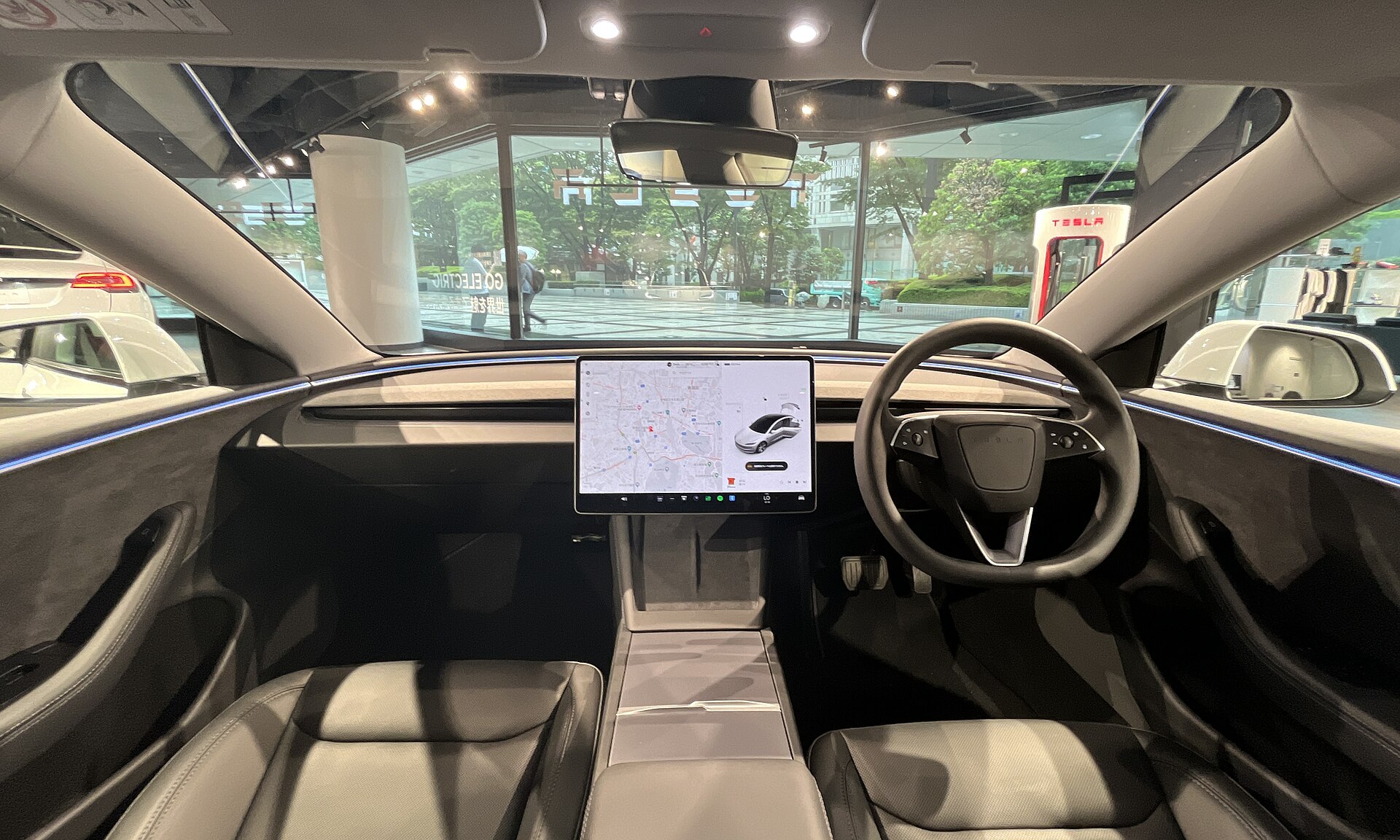
Information is current as of August 2026 and applies to U.S. and Canadian Model 3 and Model Y vehicles; Tesla pricing, features, and referral terms can change, so confirm details with Tesla before purchasing. This article is for general information only and is not affiliated with Tesla, Inc. Some links are affiliate or referral links — see our disclosure page. Image credit: Kazyakuruma, CC0 (Public Domain), via Wikimedia Commons.

About the author: Lifei Zhou
Model Y owner since 2022Ontario STO registered apprentice · 310SWorks on Porsche, Mercedes, BMW, Audi weeklyHundreds of readers referred (est.)
Lifei is a Tesla owner based in Canada, writing practical, fact-checked Tesla guides for US and Canadian drivers — buying, ownership, insurance, charging, and TSLA investing, all from first-hand experience.